
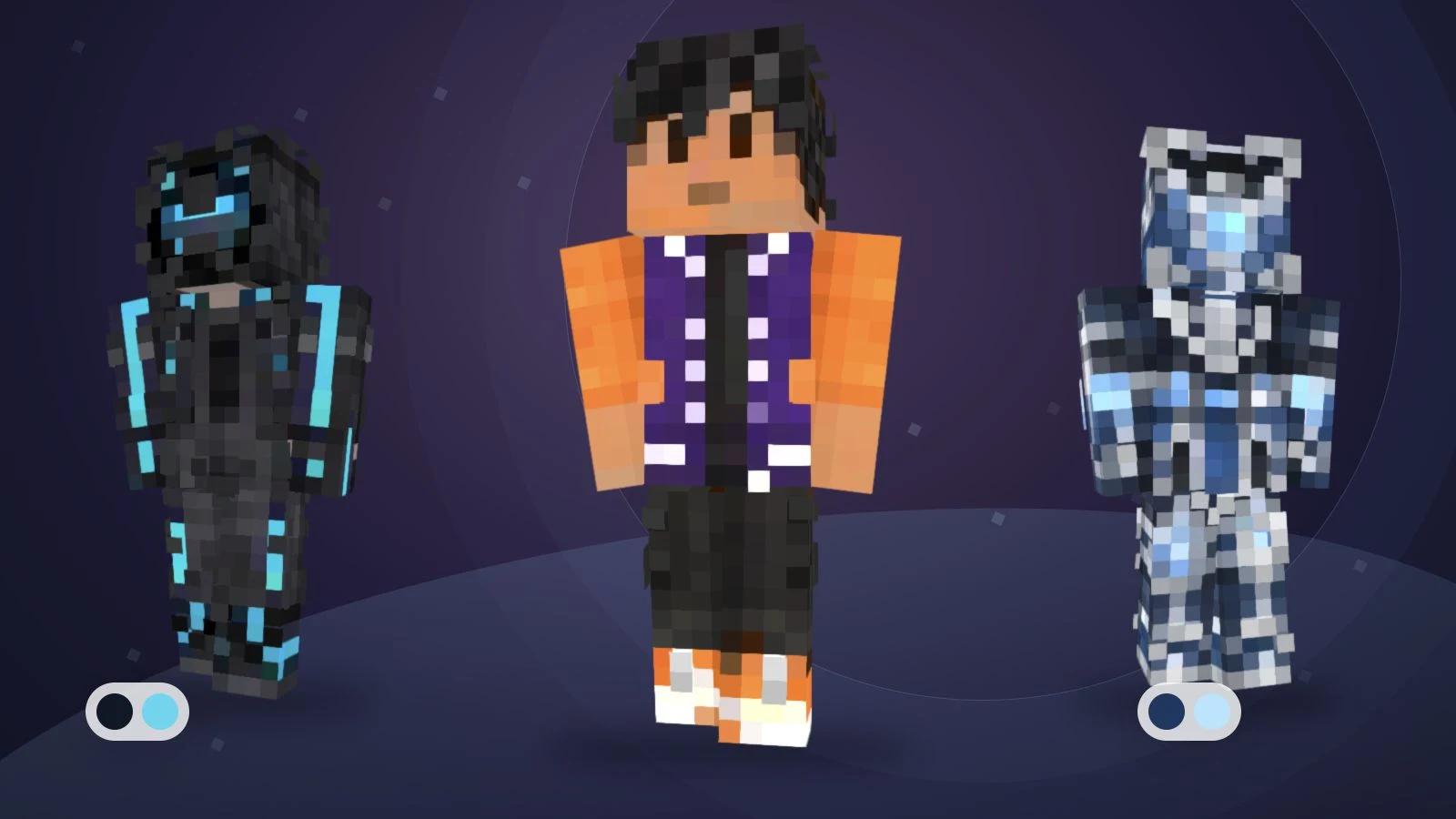
The best AI Minecraft skin generator depends on how you want to create and finish the character. Our editorial shortlist is ImagineGo for direct text skins and reviewing photo-based characters before conversion, Photo to Skin for a dedicated preview-to-editor workflow, Blocksona for several input types, SpriteSkin for its advertised HD export option, and MinecraftSkin app for trying text-generated variations.
If you want to start from an idea or a photo, ImagineGo offers direct text generation and a staged photo workflow. Photo to Skin is another preview-first option on a dedicated skin-focused site.
Disclosure and method: This article is written by the ImagineGo Team. We reviewed the five tools’ public product pages on November 13, 2026, and inspected ImagineGo’s public interface. This is a feature-and-workflow comparison, not a paid generation benchmark. We did not run the same prompt through all five tools, measure speed, or score output quality. “Best for” below means our assessment of the documented workflow, not a proven quality ranking.
Five AI Minecraft skin generators at a glance
Choose the input and export workflow first. A tool that creates a character image does a different job from one that exports a mapped skin texture.
| Tool | Input | Review and editing | Export | Suggested fit |
|---|---|---|---|---|
| ImagineGo | Text, photo | Direct text skins; photo preview stages; 3D and editor | 64×64 Classic PNG | Direct text generation or photo review |
| Photo to Skin | Photo, text | Preview stages, 3D, pixel editor | 64×64 PNG | Dedicated skin workflow |
| Blocksona | Text, photo, pet, image, Roblox | 3D, pixel editor | 64×64 PNG, .mcpack | Several reference types |
| SpriteSkin | Photo, text | 3D, editor, paid AI refinement | 64×64 PNG; paid HD .mcpack | HD export research |
| MinecraftSkin app | Text | Variations, 3D, pixel editor | 64×64 PNG | Text variations |
The table summarizes public feature descriptions checked on the review date. Export options and access conditions should be verified before purchasing; they do not establish visual quality or compatibility with every device.
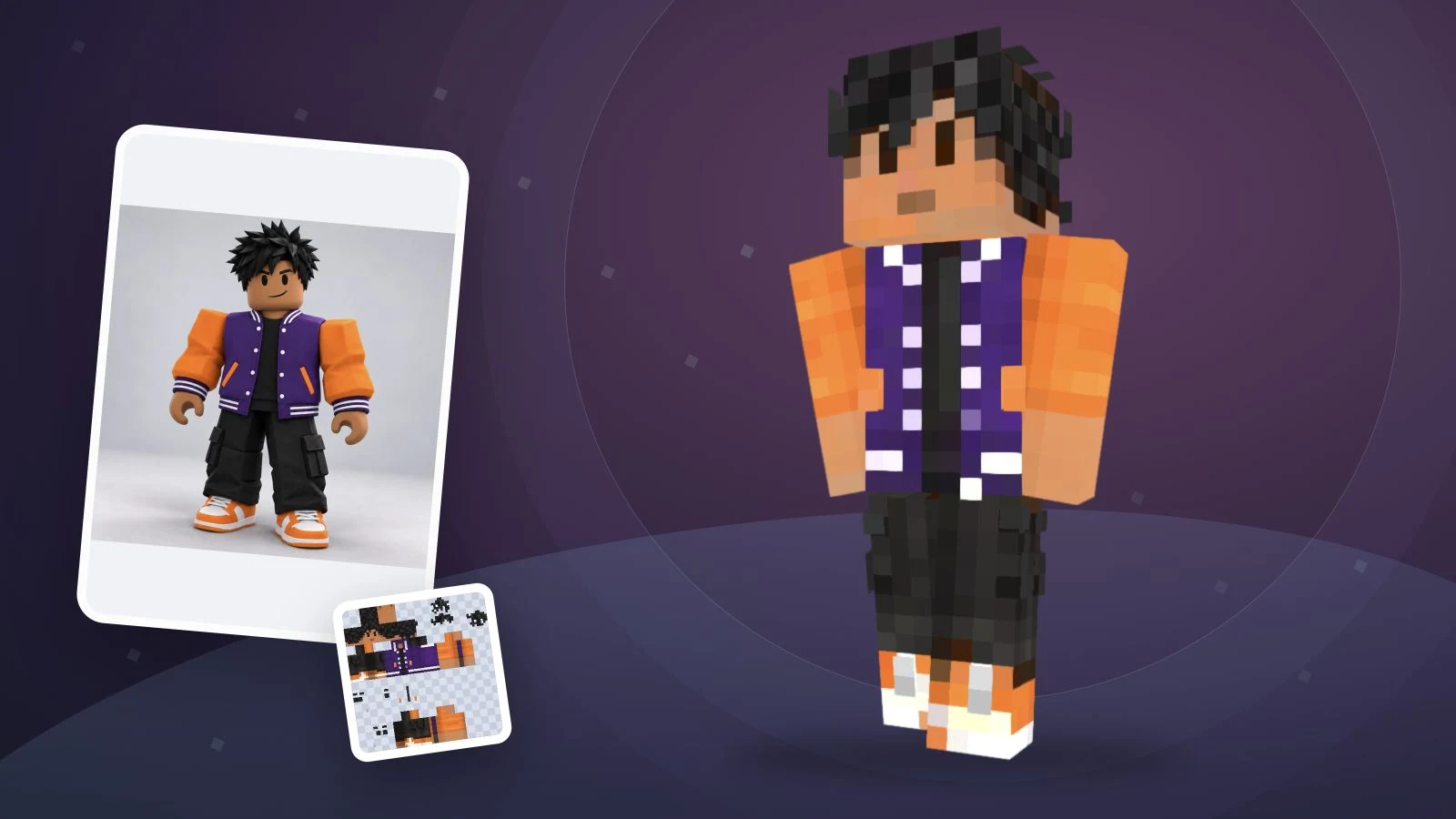
An existing ImagineGo reference-and-skin example, newly rendered for this article. The illustration does not compare outputs from the five tools.
How we compared the tools
We used five criteria that affect whether you can finish the job:
- Input: Can you start from text, a photo or the reference type you already have?
- Review: Can you inspect the appearance before or after the texture is generated?
- Editing: Can you repair a sleeve or recolor the shoes without relying on another AI interpretation?
- Export: Does the product describe an actual skin PNG, its dimensions and the arm model?
- Access: Which steps need an account, credits or a paid plan?
We did not assign a single numerical score. A player who wants several text variations and a player who wants to refine a photo-based character have different requirements. Credit counts also cannot be compared as if one credit had the same value across products. Evaluate the full path to a downloaded skin, including any preview, refinement or export charges.
ImagineGo: direct text skins and a staged photo workflow
ImagineGo’s Text To Skin mode generates a skin directly from a written description for 5 credits. The final output is a 64×64 Classic/Steve PNG with a 3D preview and a free editor. It is adapted from a legacy 64×32 texture, so left and right limbs are mirrored. Independent sleeve or leg patterns need manual editing.
Photo To Skin keeps the staged workflow: Character preview, optional Edit preview, and Generate game skin. This lets you check the front and back appearance of the character before conversion. Its preview and conversion steps have separate displayed costs.
Tradeoff: Sign-in and credits are required for AI generation. Text generation offers a shorter workflow, while photo creation offers an appearance-review step. The original download is Classic; adapt it in the editor for Slim and inspect the arms. These workflow differences do not establish better output quality than other tools.
Photo to Skin: a dedicated preview, refine and edit workflow
Photo to Skin offers photo and text entry points, front/back character previews, and conversion to a 64×64 skin. Its public workflow emphasizes reviewing the appearance first and converting the chosen preview afterward.
The site also describes an in-browser editor with pixel tools and Classic/Slim model switching. That makes it a relevant alternative if you want a site centered on making and refining Minecraft skins.
Tradeoff: Preview and final conversion are separate credit-consuming steps. Its published welcome allowance should not be read as proof that an entire preview-plus-conversion workflow is free. Check the full sequence and any additional previews before starting. This review did not test whether its generated skin preserves a reference more closely than ImagineGo or the other tools.
Blocksona: several ways to start a character
Blocksona’s public pages describe photo, pet, image, Roblox and text modes. Its text workflow includes Classic or Slim arm selection, a 3D preview, pixel editing, and PNG or .mcpack downloads.
Suggested fit: A creator who wants to explore several reference types rather than use only a text box or a portrait upload. The dedicated modes make the supported starting points explicit.
Tradeoff: Generation requires sign-in and uses credits. Different inputs also need different preparation: a clear character reference and a written idea are not interchangeable. We verified the published feature descriptions, not the quality of each mode or a successful generation for each input type.
SpriteSkin: an option to investigate for HD Bedrock exports
SpriteSkin describes photo and text generation, Classic/Slim selection, a 3D viewer, and a manual editor. It advertises a standard 64×64 PNG and a paid HD 128×128 .mcpack option, with additional paid refinement features.
Suggested fit: A player specifically researching a larger Bedrock texture or skin-pack export. That export distinction is more relevant to this use case than a generic “best AI” label.
Tradeoff: Its public page separates free access from paid quality, export and refinement options; free allowances also vary by region. A larger texture or .mcpack file does not remove platform restrictions on custom skin imports. We did not test the HD export, its installation or its visual quality, so treat it as a documented option to verify on your own device.
MinecraftSkin app: text variations before you choose
MinecraftSkin app’s public interface centers on a written idea and offers one, two or four generated variations. It describes 3D inspection, Classic/Slim options, pixel editing and 64×64 PNG downloads. The site currently advertises an initial no-sign-up allowance.
Suggested fit: Someone who has a short character idea and wants to compare different interpretations before choosing a favorite.
Tradeoff: Variations help with choosing, but do not replace inspecting the downloaded texture. The reviewed page describes a text-centered workflow; do not assume it provides the same reference-image process as the photo-focused entries. We did not submit a generation or verify the trial allowance through checkout.
Which workflow should you choose?
Start from the thing you already have, then check how much control you need before downloading.
| Your situation | Start with | Check before proceeding |
|---|---|---|
| You have an original character idea | ImagineGo Text To Skin, Blocksona or MinecraftSkin app | Prompt clarity, arm model and whether you want variations |
| You want to approve front/back views first | ImagineGo Photo To Skin or Photo to Skin | Preview cost, revision steps and final conversion cost |
| You have a character image or photo | A product with a documented image-input workflow | Reference clarity and permission to use the image |
| You specifically need HD Bedrock output | Investigate SpriteSkin’s paid export option | Device support, file format and the required paid access |
| You already have a skin with one small flaw | A manual skin editor | Whether a pixel correction solves the issue without AI |
For a text-based design, use an appearance description such as:
A forest cartographer with chestnut hair, a moss-green jacket,
cream shirt, brown trousers and dark boots. Keep the jacket back
plain green and the face visible. Use simple pixel details.
This is a suggested common input, not the prompt behind a five-tool test. Review the face, sleeves, back and shoe edges in each actual result. For more ideas, our Minecraft skin prompt guide includes twelve original starting points.
A preview image is not the final skin file
The file you import into Minecraft must contain the skin texture laid out for the character. A screenshot of a 3D preview or a front/back character illustration is not a replacement for that file. Correct dimensions alone also do not prove the texture maps well.
Before relying on an export, check:
- The download is the final skin PNG or the supported package you intended to export.
- The texture’s dimensions and layout match your workflow.
- The arm model selected in the game matches the exported texture.
- The face, back, shoulders and limbs look correct on the 3D model.
- Your edition and device support importing that type of custom skin.
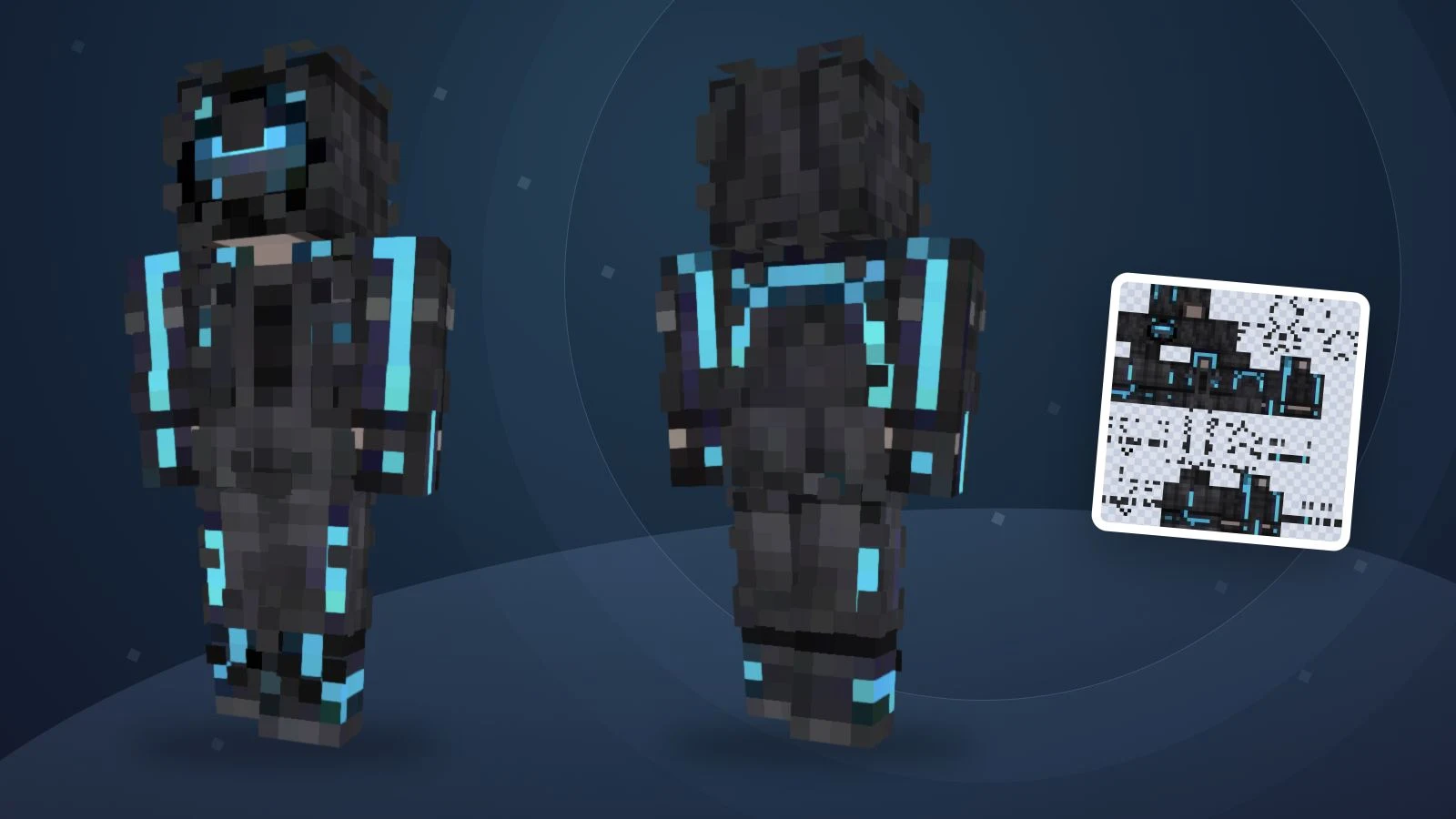
Front and back views of one existing sample texture, rendered for inspection. It is not a result from a new cross-tool test.
Custom PNG import is available in Java and on supported Bedrock Windows/mobile platforms. Console restrictions are separate from the generator: buying a tool or changing a prompt does not create a console import option. Match Classic/Wide or Slim to the file you actually exported.
Inspect an existing skin in 3D
This is the actual texture from the published purple varsity example. Rotate it to inspect the sleeves, hair and shoes before deciding which details you want in your own design. The preview is an ImagineGo sample, not a claim about a competitor’s output.

Loading the example skin…
Frequently asked questions
What is the best AI Minecraft skin generator overall?
We would start with ImagineGo for direct text generation or for inspecting and revising a photo-based character before conversion, while Photo to Skin is a dedicated alternative with a similar staged approach. For input variety, text variations or HD export, the other entries have different documented strengths. This comparison does not establish an overall image-quality winner.
Which option is free?
Some products advertise trial allowances, and manual skin editors can be free. Distinguish a free preview from a free completed skin, then check sign-in, regional, download and paid-feature conditions. We did not verify every trial by generating an output.
Are photo and text generation the same thing?
No. Text gives the tool a written design brief; photo input gives it visible appearance cues. Both still require reviewing the generated interpretation and final texture. A photo does not guarantee an exact likeness, and unseen details may be inferred.
Is an AI generator better than a skin editor?
Use AI when you want a first interpretation of a new character. Use an editor when you need direct control over specific pixels or already have a skin to repair. A workflow that includes both can be more practical than repeatedly regenerating a nearly finished design.
Can I use the result on every Minecraft platform?
No. Confirm your edition, device and import method before paying. Java and supported Bedrock Windows/mobile imports are different from console customization, and an HD option does not imply wider device compatibility.
Where should I start?
Choose Text To Skin for a written idea or Photo To Skin for a reference image. For text, generate the skin directly and inspect it in 3D. For photos, review the character and check the separate conversion cost. Download the final PNG you intend to import.
Create your own Minecraft skin
Describe your character, review the preview, then create a skin you can inspect and edit.