Animate a character image with a reference video. Transfer dance moves and gestures with Kling 2.6 Motion Control in 720p or 1080p.
Motion Control AI workspace
1. Character image
JPG / PNG · max 10 MB · dimensions >300 px
2. Motion reference video
MP4 / MOV · max 100 MB · 3–30 seconds
Video: follows reference facing, max 30 s. Image: keeps image facing, max 10 s.
Kling 2.6 Motion Control48 points
Sign in to upload and generate. Points are required; review the amount above.
Motion Control AI result
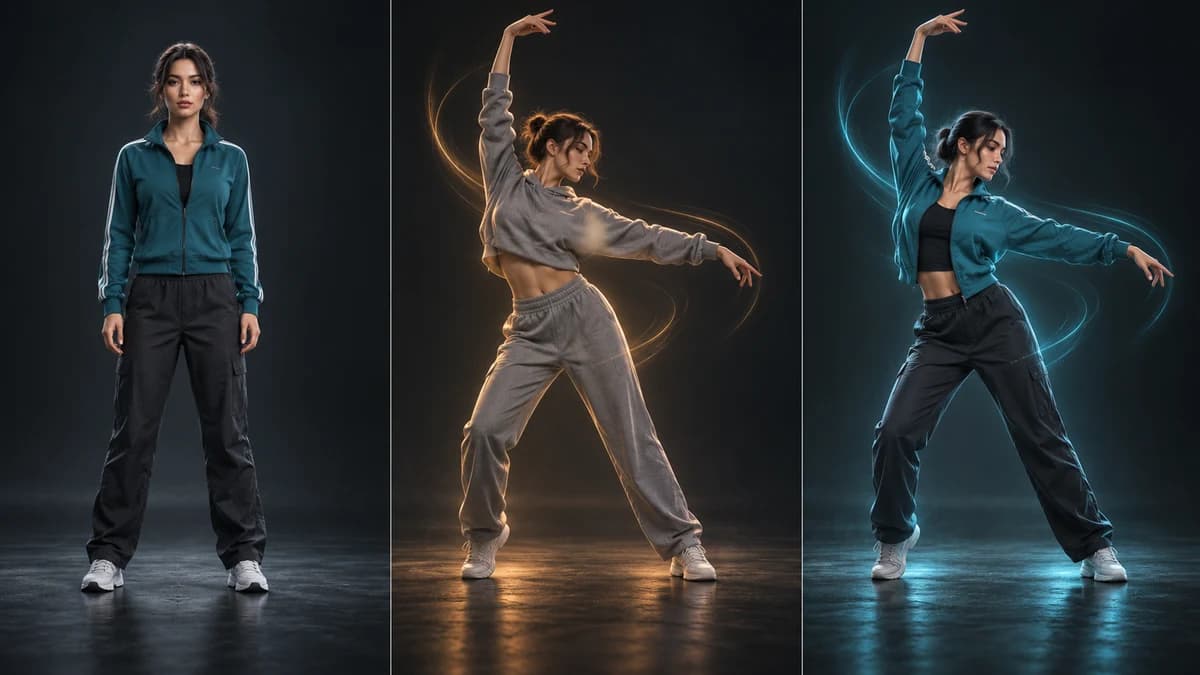
AI-generated concept illustration. These still images explain the workflow; they are not frames from a Kling-generated video or a guarantee of the result.
Motion Control AI: from reference to performance
Imagine a character illustration standing still. A short recording of a dancer supplies the movement; the character image supplies the appearance. Motion Control AI brings these two references together so you can explore a moving version of your character. The visual below illustrates that relationship: character reference, performance reference and intended pose transfer. Upload your own two sources in the workspace to generate a playable video.
AI-generated concept illustration. These still images explain the workflow; they are not frames from a Kling-generated video or a guarantee of the result.
How to use Motion Control AI
01
Choose a clear character image
Upload one JPG or PNG up to 10 MB. Both dimensions must exceed 300 pixels, and the aspect ratio must be between 2:5 and 5:2. Choose a reference that shows the head, shoulders and torso clearly; include the full body when the action involves legs or footwork. Strong contrast and visible limbs make the intended character easier to interpret.
02
Add a motion reference video
Upload one MP4 or MOV up to 100 MB. Use a clean clip with a single visible performer and an uninterrupted action. Video orientation accepts 3–30 seconds; image orientation accepts 3–10 seconds. The uploaded clip supplies the movement, so trim away introductions, scene cuts and unrelated activity before you start.
03
Set orientation and output quality
Choose whether the character follows the facing direction in the video or keeps the orientation of the image. Select 720p for an initial experiment or 1080p for a higher-resolution output. An optional prompt can describe the scene or visual intention. Review the points shown next to the generate button before submitting.
04
Generate, review and download
Sign in, upload both sources and create the task. The workspace shows progress while the video generates. Once it finishes, play it to check the movement, character appearance, hands and background. Download the video or open your video history to revisit a generation. Change one reference or setting at a time when refining a result.
Why create with Motion Control AI
A performance reference instead of guesswork
Text can describe a dance, but a video provides a concrete performance to follow. Motion Control AI uses that reference to guide timing and body movement. This gives you a more direct way to communicate an action than trying to specify every pose in a long prompt. Reference quality still matters, and output may vary.
Your character, a new movement idea
Keep a character image as the visual starting point while exploring different gestures, dance clips or presentation styles. A reusable reference helps you compare ideas without redesigning the character each time. Match the framing and visible anatomy across the two inputs for a clearer starting point; complex costumes and extreme poses may need another attempt.
One workflow inside ImagineGo
Use the same sign-in, upload storage, points system and task history as the existing video tools. This page runs the registered Kling 2.6 Motion Control model. Output quality and the displayed points come from the site’s model configuration. You can review the result in your browser and download it without setting up an animation timeline or rig.
Motion Control AI ideas for your next video
Dance and social video concepts
Pair a full-body character image with a short dance reference to explore choreography for a social post. Start with a simple routine where feet and hands stay visible. Review the entire output before publishing, especially turns, crossed arms and fast steps. A short test can help you decide whether the character and performance are a good match.
Character greetings and presenter gestures
Try a wave, a welcoming pose or an expressive hand gesture for a fictional presenter. A waist-up reference can work well when the movement stays within that framing. Keep the action readable and the background quiet. This workflow guides visual performance; it does not provide a dedicated lip-sync, speech generation or precise facial capture control.
Animation and storyboard exploration
Use a motion reference to test how a character concept reads in movement before committing to a larger production. Compare a calm gesture with a more energetic performance and note which silhouette works best. The downloaded output is a rendered video, not an editable 3D skeleton, motion-capture file or rigged animation asset.
Mascot and campaign experiments
Give a humanoid mascot a movement idea for a campaign mockup or an internal creative review. Choose a character with recognizable limbs and a reference whose action fits its proportions. Treat unusual anatomy as an experiment rather than a guaranteed use case. Compare several short tests and select the result that communicates the intended mood most clearly.
Get better results with Motion Control AI
Match framing and keep one performer
Use sources with similar body visibility and a clear main subject. A full-body dance clip paired with a tightly cropped portrait gives the model less visual information about the lower body. Avoid overlapping people, obscured hands and busy foreground objects. Stable lighting and a camera that keeps the performer in frame can make reviewing the result easier.
Use the prompt for scene direction
Let the reference video communicate the action. Use the optional prompt for a simple visual preference, such as a clean studio or natural lighting, rather than a competing description of a different movement. Inspect character consistency and motion before increasing output quality. If the clip is too long for image orientation, trim it or choose video orientation.
Example scene direction
A full-body character performing in a clean studio, soft natural lighting and a simple background. Follow the uploaded motion reference. Keep the outfit visually consistent. This is an example prompt, not a promise of exact identity or motion reproduction.
It is an image-to-video workflow that uses a character image for appearance and a reference video for performance. This ImagineGo tool connects to Kling 2.6 Motion Control. You supply both sources, select the output quality and orientation, and receive a rendered video when the task succeeds.
How is it different from ordinary image-to-video?
Ordinary image-to-video often asks a prompt to describe movement from a starting image. Here a second uploaded video guides the performance. Choose this tool when you already have a motion reference. For a product reveal without a performer reference, explore the related product-video tools instead.
Which image and video files can I upload?
Use JPG or PNG images up to 10 MB, with both dimensions above 300 pixels and an aspect ratio from 2:5 to 5:2. Motion references must be MP4 or MOV up to 100 MB. The page checks media before uploading and rejects unreadable files. A single clear performer is a useful starting point.
How long can the motion reference be?
Choose a clip of at least 3 seconds. Video orientation allows up to 30 seconds; image orientation allows up to 10 seconds. The workspace rechecks this limit when you change orientation. Trim longer clips before uploading rather than relying on the model to cut them for you.
Is Motion Control AI free, and how are points calculated?
Generation requires an account and enough points. The generate area displays the cost from ImagineGo’s current Kling model configuration and updates when you change resolution. Review that amount before generating. This page does not promise a free trial, unlimited generations or a separate subscription benefit.
Does the result include audio or editable motion data?
This tool provides a video output and exposes motion references, orientation, resolution and optional scene direction. It does not expose an audio-generation setting or export editable motion-capture data. Preview your result and use your usual editor to add sound, captions or further edits if needed.
Will every gesture and character detail match perfectly?
No. Motion transfer is generative, and difficult poses, fast movement, occlusion or unusual anatomy can produce artifacts. Review faces, hands, feet and the full action sequence. Use shorter clips and clearer references when testing. Upload sources you have permission to use and check the result before sharing.
Start your Motion Control AI video
Bring one clear character image and a short motion reference. Start with a simple performance, review the displayed points and see how your character moves.