
Portrait
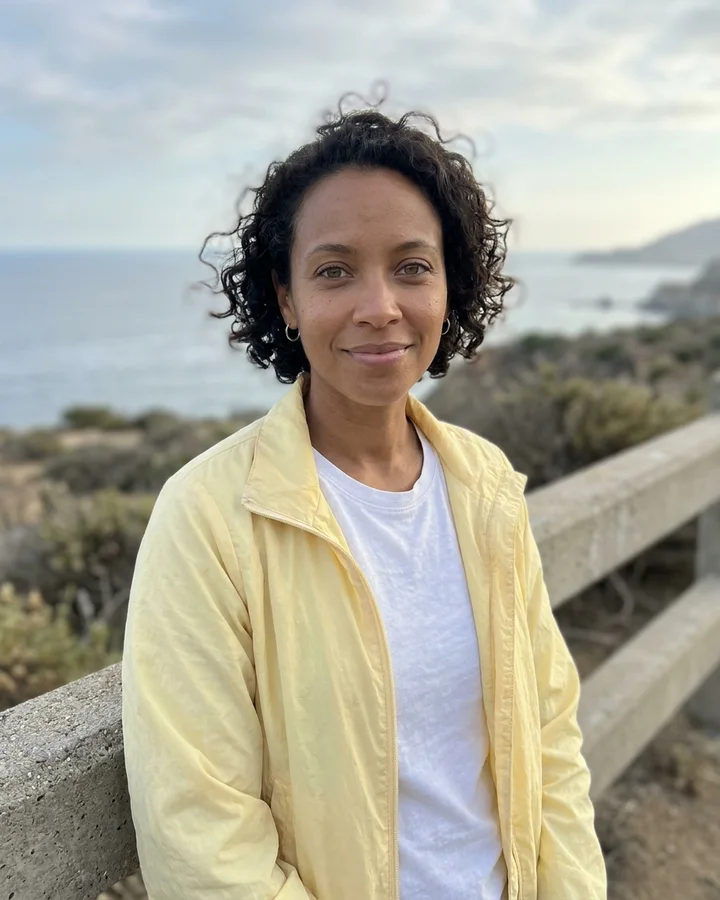
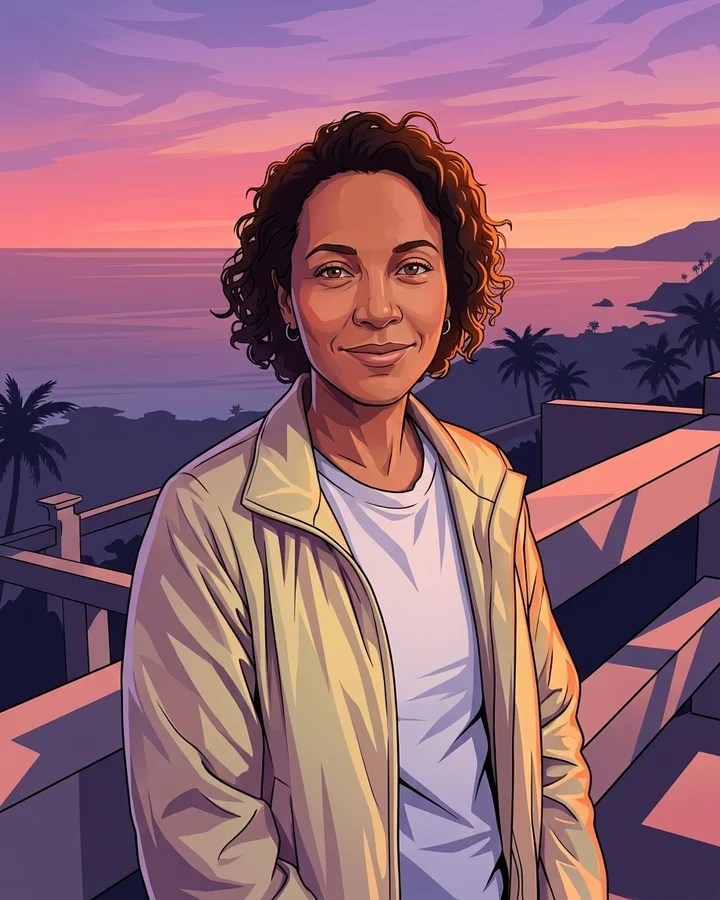
Turn a selfie, car photo or pet portrait into loading-screen-style sunset art. Upload a photo and apply the GTA 6 Filter with Nano Banana 2.1.
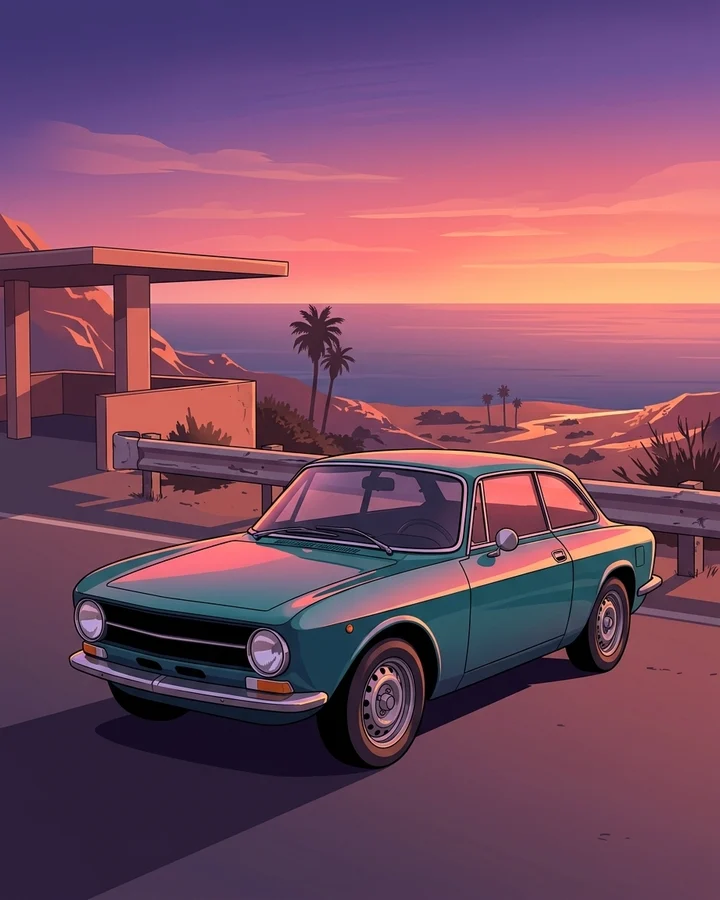
See how Nano Banana 2.1 turned a portrait, a car and a pet photo into sunset illustrations using the style reference.
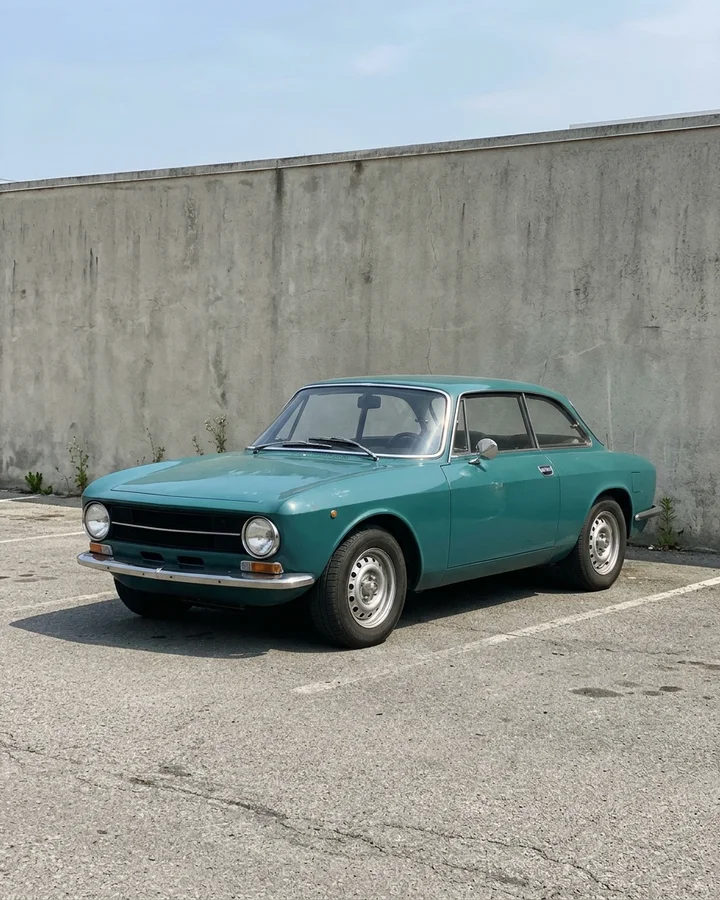
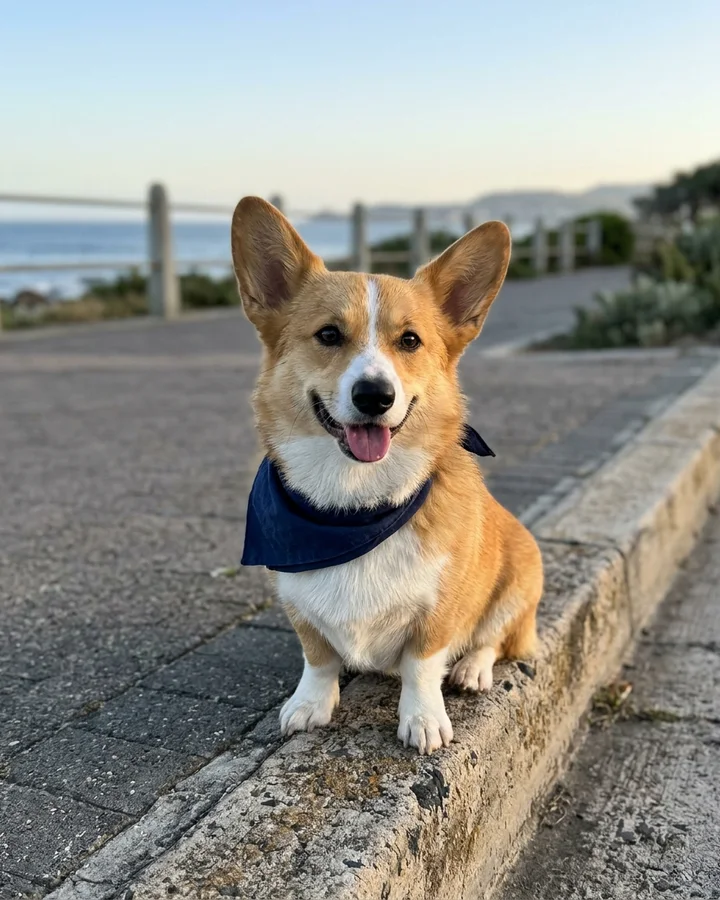
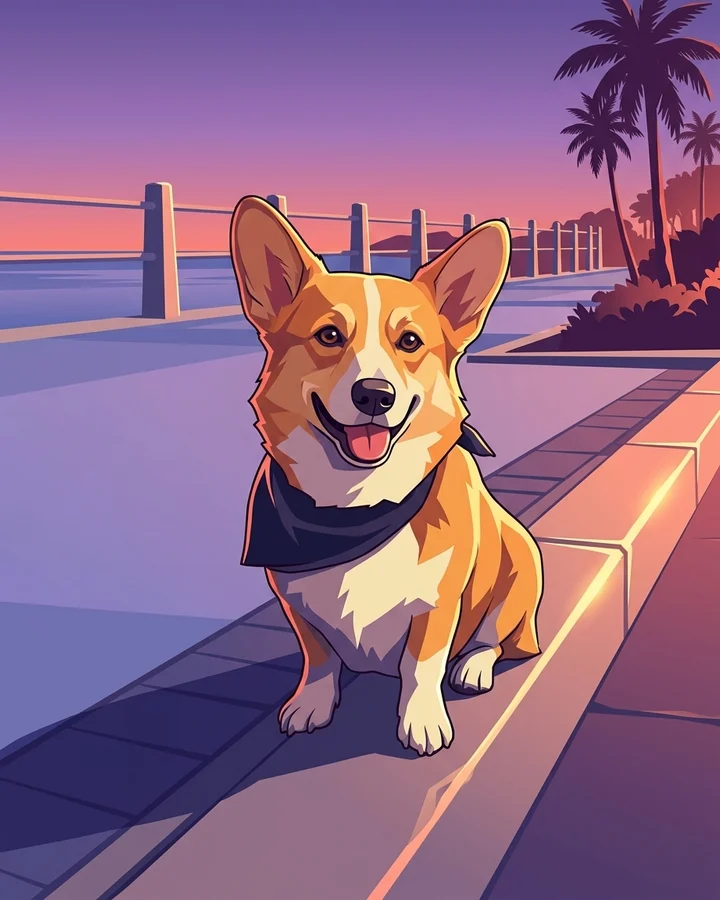
Choose one JPG, PNG or WebP photo up to 30 MB. The scene and main subject come from your upload. Use a photo with a clear face, readable vehicle silhouette or distinct pet markings to give the filter a detail worth preserving.
Use Auto to let the model choose a shape for your photo, or select 4:5 for feed posts, 9:16 for phone wallpaper, 1:1 for square uses or 16:9 for a wide banner. Leave space around things you want inside the frame.
Sign in and select Apply GTA 6 Filter. Nano Banana 2.1 receives your source photo and the built-in style reference, then produces one illustrated image. Compare it with the original in the preview panel, then open or save the finished image.
The photo is redrawn with bright coral highlights, a violet sky or reflected cool tones, shaped shadows and ink-like edges. Fine details can simplify into painted surfaces, so the biggest changes often appear along hair, fabric, car panels and buildings. The effect can come through in the lighting even when the original background is indoors.
The source photo guides the face, outfit, pose, vehicle silhouette or animal markings. The built-in reference guides the color treatment and drawing style. Nano Banana 2.1 uses both references during the edit. Small accessories, printed lettering and distant faces can still shift, so check those details before sharing the image.
Choose the output ratio before generation, so the model can plan where the subject sits in the frame. A portrait crop can emphasize one figure or pet. A wider ratio leaves room for a car, skyline or group. The download is a single 1K JPEG you can share or bring into another editor.
Start with a head-and-shoulders photo in even light, with space above your hair and beside your face. A simple background gives the filter room to build contrast around your face. If you plan to crop the result into a circle, keep the eyes and the main outline near the center.
A clear side view or front three-quarter photograph gives the model useful cues for the roofline, wheels and headlights. Open streets, parking areas and coastal roads leave space for illustrated shadows. Choose a landscape frame when you want the full vehicle and the surrounding scene in the same image.
Try a sharp image at your pet’s eye level. Include the ears, nose and any coat pattern you want to see in the illustration. A clean edge around the animal helps preserve its silhouette. A 4:5 composition gives a seated dog or cat space without making the subject look small.
Choose a group photo with faces on roughly the same plane and a little room between people, then use a wide ratio to keep more of the scene. For a wallpaper, use a vertical source and leave open space above the subject for a clock or other phone controls.
Look at the source at full size before uploading. If a face, wheel or patch of fur is already blurry, the model has to guess what belongs there. An uncluttered photo with visible edges usually shows the effect more clearly. Avoid screenshots with stickers, text boxes or controls covering the important parts.
A wide scene converted to 9:16 may lose details at its edges or gain newly drawn background above and below. Crop your original first if you want to tell the model exactly which subject matters most. Use a landscape shape when the scene’s width is part of the story.
Flip between the input and the finished image to check eye shape, fingers, hair, wheel geometry or coat markings. The poster effect deliberately changes color and texture, and precise details may vary from one generation to another. Upload photos you have permission to edit and remove private details you do not need in the result.
It’s an independent, fan-inspired photo effect that turns one uploaded image into an original loading-screen-style poster. The visual cues are tropical sunset colors, dark contour lines and graphic shadows. It’s a standalone image tool with no affiliation with Rockstar Games.
The filter works on a single photo and produces a still JPEG. You can import that result and the source photo into a video editor to make a before-and-after reveal. Choose 9:16 at generation time if the finished still will fill a vertical video.
The tool includes a built-in written prompt and visual style reference. Upload the source photo and pick the output shape. For a different visual direction, use the full Nano Banana 2.1 model workflow, which gives you control of the prompt and reference images.
The edit is guided to preserve recognizable details from your source photo and build the illustration around them. The result may alter features, accessories, logos or background elements. Sharp source photos and a clear subject give the model more specific details to work from.
When you apply the filter, ImagineGo uploads your photo and sends it with the style reference to the image-generation service. Use a photo you have permission to process and check the output for details you wish to keep private before sharing it.
The workspace displays the current ImagineGo credit cost for one 1K image. Sign in with enough credits to generate. Choose the output ratio and check the selected photo before submitting, since generating a new rendition starts another task.
Choose a photo with a clear subject, pick where you want to share the result, and see it redrawn as a colorful sunset illustration.
Upload a photo ↑ GTA CJ Meme Generator
 GTA Art Image Generator
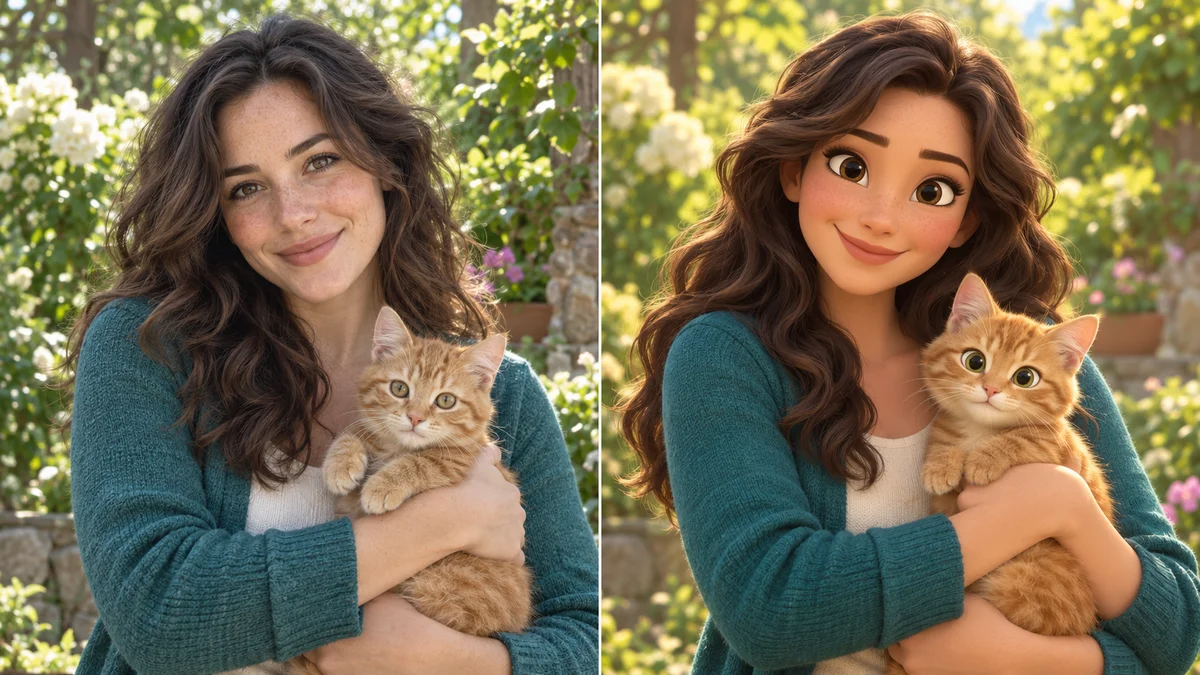 Photo to Disney
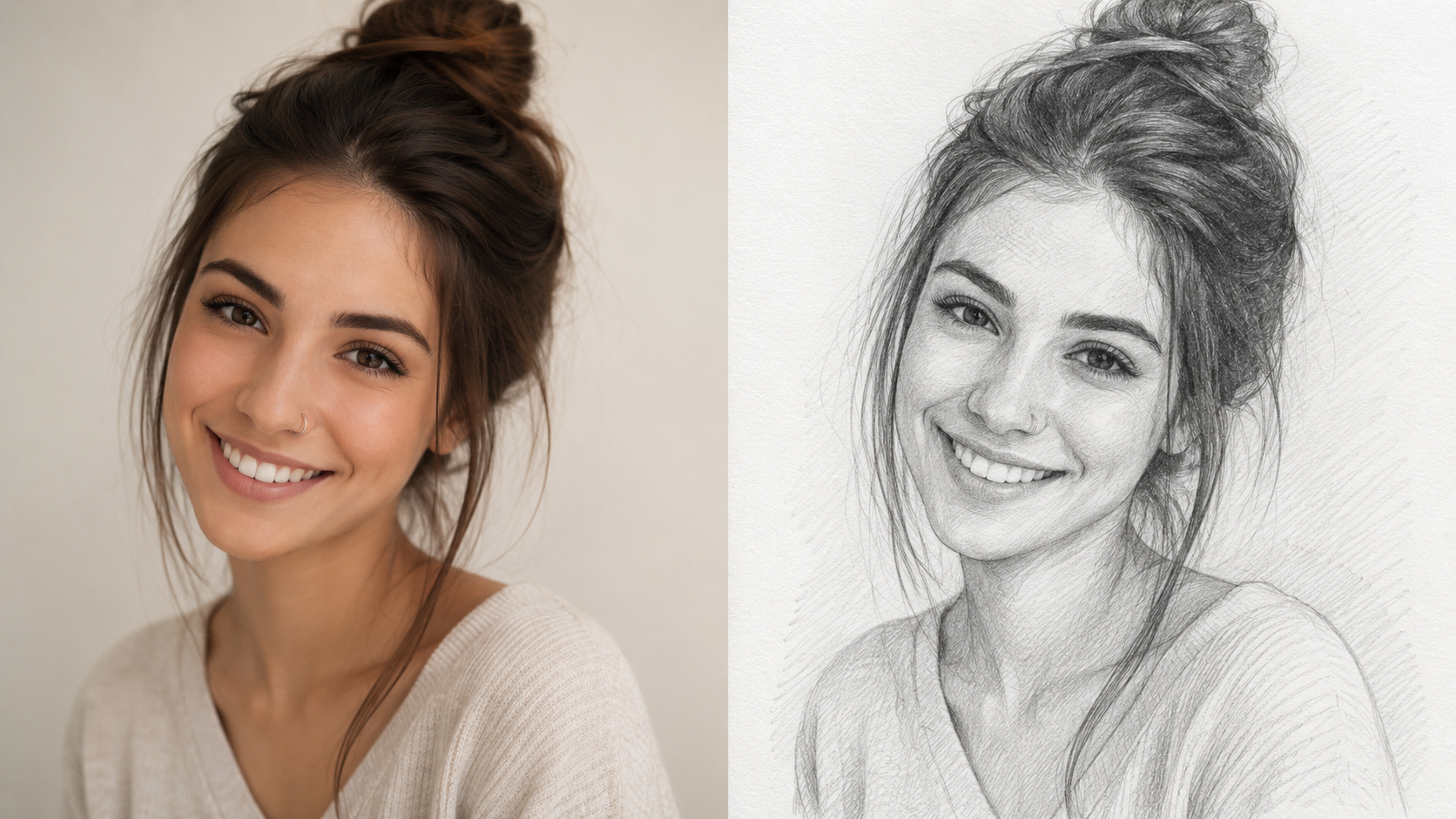 Pencil Sketch Drawing Converter