Replace words in a photo, poster or graphic with GPT Image 2.5. Guide the original typography and layout without rebuilding the design.
Edit Text in Image workspace
If no location is given, all exact visible matches are targeted.
GPT Image 2.5 · 1K6 points / edit
Sign in to upload and edit. Review the points above before generating.
Edit Text in Image result
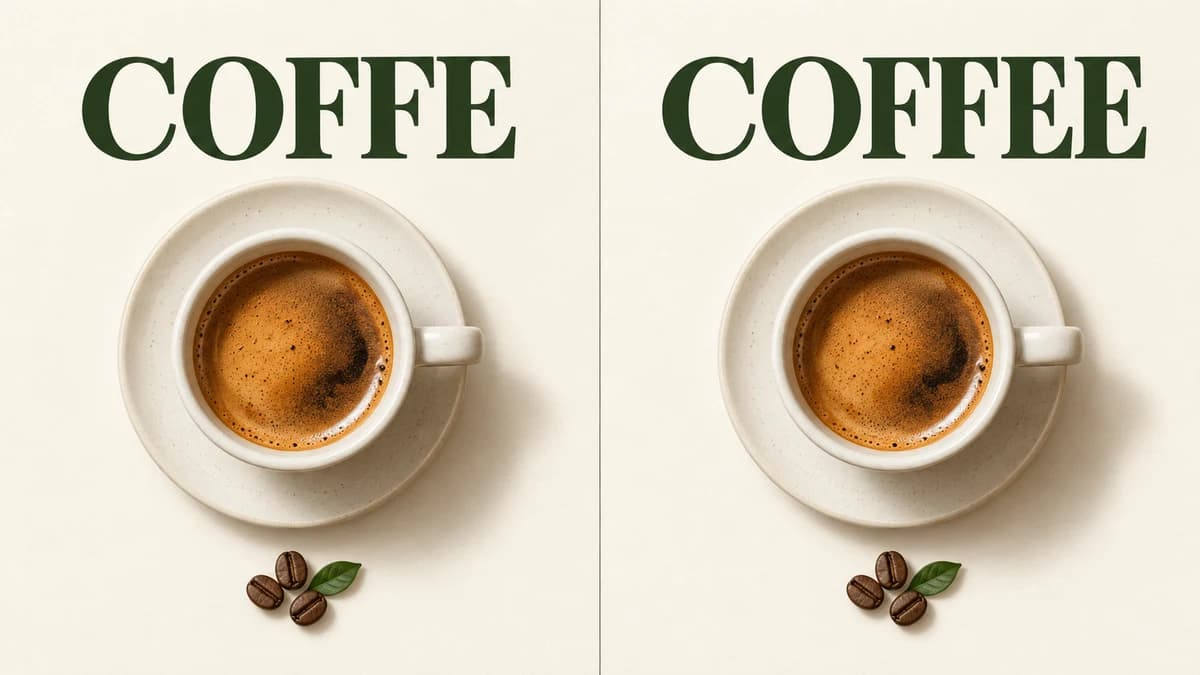
AI-generated illustrative comparison, not a verified GPT Image 2.5 tool output. Actual typography, spelling and background preservation may vary.
Edit Text in Image: a visual replacement example
A small typo can make a finished graphic unusable even when its photography and layout are already right. This example illustrates the intended change: replace COFFE with COFFEE while retaining the coffee cup, paper background and headline style. The tool sends your uploaded image and exact wording to GPT Image 2.5 for image editing. Your own result appears in the workspace after generation, where you can inspect the new lettering before downloading.
AI-generated illustrative comparison, not a verified GPT Image 2.5 tool output. Actual typography, spelling and background preservation may vary.
How to use Edit Text in Image
01
Upload your finished image
Choose one JPG, PNG or WebP up to 10 MB. Use the clearest available source, with the target words large enough to read. A poster, product graphic, thumbnail or photographed sign can provide the starting point. You do not need the original design file, but this workflow edits a flattened image rather than recovering its editable layers.
02
Enter the original and replacement words
Copy the visible original phrase into the first field, then enter exactly what should replace it. Check capitalization, punctuation and spelling before generating. Both fields are required, so the page stays focused on replacing existing text. If the phrase appears several times, add a location such as top headline or label on the left to identify the intended occurrence.
03
Generate, inspect and download
Sign in and review the displayed points before submitting. GPT Image 2.5 receives your image with instructions to match the existing visual style and preserve unrelated content. When the edited image appears, inspect the text and nearby details at a useful zoom level. Download the result or revisit it in image history. Refine one change at a time if the first result needs adjustment.
Why choose Edit Text in Image
Update a flattened design
Sometimes all you have is an exported JPEG or PNG, while the original source file is unavailable. Edit Text in Image gives you a way to request a narrow wording change without recreating every visual element. It is useful for exploring a revised graphic quickly. For exact production typography, keep an editable source file whenever one is available.
Guide the existing typography
The uploaded image acts as the reference for letter weight, color, spacing, alignment, shadow and perspective. You can ask for a replacement that feels consistent with the surrounding design instead of adding an unrelated text box. This is visual matching, not identification or recovery of the original font file. Fine details may still need a manual finishing pass.
Keep the task focused
Separate original and replacement fields reduce ambiguity about what should change. The optional location field helps when the same phrase appears in several places. Without a location, the request targets all exact visible matches of that phrase. The generated instructions ask the model to preserve other words, objects and layout, and the result remains available through the existing image-task workflow.
Edit Text in Image for everyday design tasks
Correct poster and flyer copy
Fix a misspelled headline or revise a short phrase on a finished promotional graphic. Keep replacement copy close to the original length so it can fit the existing space naturally. Review nearby small print as well as the edited headline before distributing the image. Generative editing can alter details outside the intended region, so a final comparison is worthwhile.
Refresh thumbnails and social graphics
Try a clearer headline on a thumbnail or a different message for a social campaign. Start with a short, readable phrase and a high-quality source. The tool can help explore a new wording direction while retaining the broad design. It does not produce an editable template or automatically prepare every platform size; use your normal editor for final cropping and exports.
Prepare localized visual variants
Enter your own translated phrase as the replacement to request another language within the existing graphic. Translation quality is your responsibility: this form copies supplied wording rather than offering a translation service. Different scripts and longer phrases can change the required spacing and line breaks. Ask a fluent reader to review spelling and reading order before sharing the localized version.
Explore labels and presentation mockups
Revise the wording on a concept label, slide image or photographed display for a design review. Use a precise location when the image contains several labels. Perspective, curved surfaces and reflections make these edits more demanding. Treat the result as a mockup until it has been checked, and return to editable artwork for final packaging or other output that requires exact text.
Get better results with Edit Text in Image
Make the target easy to read
Small lettering, blur and heavy compression make a phrase harder to identify. Use a clearer source instead of enlarging a tiny preview. If you crop for a closer edit, keep enough context to show the background and text style; the result will follow that cropped image. Avoid asking for multiple unrelated edits in the same request.
Keep replacement copy practical
A long sentence may not fit a short title area. Prefer wording of a similar length, or include deliberate line breaks where they make sense. Use the location field for a region description, not a competing design brief. Review numbers, accents, non-Latin characters and punctuation carefully. When exact letter placement matters, use a layer-based editor for the final typography.
A simple replacement request
Original text: COFFE. Replacement text: COFFEE. Location: the large headline above the cup. The model is asked to change that headline and retain the surrounding poster. Try your own literal wording in the form; quotation marks, apostrophes and line breaks are passed as text data.
Can I edit text in a JPG or PNG without the source file?
Yes. Upload a JPG, PNG or WebP and specify the original and replacement words. GPT Image 2.5 generates an edited image from that reference. The result is a flattened image, not a recovered PSD, vector document or editable text layer.
Will it keep the same font and background?
The edit request guides the original typography, color, alignment, texture and background. Exact font matching and unchanged pixels are not guaranteed. Check the edited letters and surrounding content before using the image, especially for small text or complex surfaces.
How do I edit just one repeated phrase?
Add a location such as the top headline, the left label or the lower-right caption. The request then targets the phrase at that location. With no location supplied, it asks to replace all exact visible occurrences of the original phrase. Location descriptions guide the model; this page does not provide a pixel mask.
Can I change the language of text in an image?
You can enter a translated phrase as the replacement. The tool sends that exact wording for image editing rather than translating it automatically. Check accents, character shapes, line breaks and reading order with a fluent reader. A different script may need a revised layout.
Is Edit Text in Image free?
Generation requires an account and sufficient points. The current cost is shown in the tool area and comes from ImagineGo’s GPT Image 2.5 configuration for 1K image editing. This page does not promise unlimited free editing. Review the displayed amount before submitting a task.
Can I remove text or add a new text box?
This page is designed to replace visible text, so both wording fields are required. It does not include a dedicated text-removal mode, a draggable text box or an editable layer system. For those workflows, use a general image editor with the controls you need.
What should I check before uploading and sharing?
Use an image you have permission to edit. Uploaded files are sent through the site’s storage and image-generation workflow; this is not a local-only editor. Avoid unnecessary private information. After generation, verify the entire image and make sure the revised wording accurately represents your intended design.
Try Edit Text in Image on your next design
Upload a clear image, enter one phrase to replace and check the new lettering in the result. Start with a short edit and refine the wording as needed.