logoimagineGo.ai
Home
Text to VideoImage to Video
Text to ImageImage to Image
Text to 3DImage to 3D
ModelsTools

PNG to GLB

Convert a PNG reference image into a downloadable GLB model with AI. Upload, generate, rotate the 3D preview and export your model.

imagineGo · 3DText to 3D

PNG to GLB · Input

Reference image

Use a clear photo of one object with a simple background.

PNG to GLB · 3D output

Your next dimension starts here

Describe an object or upload an image to create a downloadable 3D asset.

GLB

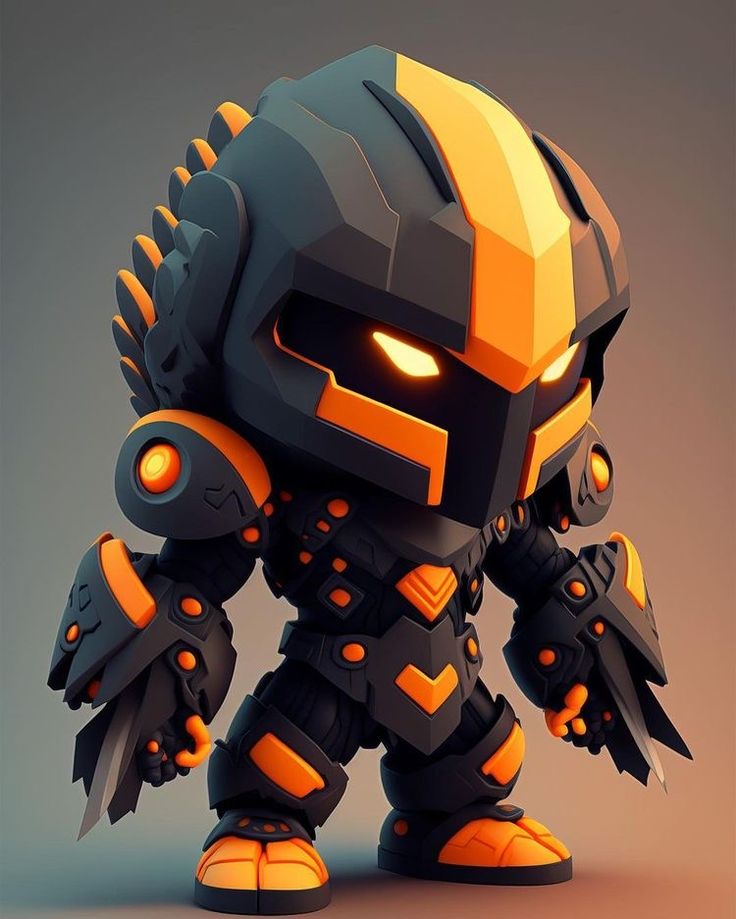
PNG to GLB example: from reference to 3D

A PNG records a flat view of an object; a GLB stores a three-dimensional scene. This tool uses the existing AI Image to 3D model to estimate shape from a reference and request GLB output. It creates new geometry rather than renaming an image file. Inspect the example below to see how an image reference and a rotatable mesh differ.

Object reference used in the existing image-to-3D example
Existing reference image · JPG example; PNG uploads use the same model
Existing site GLB example, not a guaranteed result for your PNG. Drag to inspect the model.

How to use PNG to GLB

01

Prepare and upload your PNG

Choose one object with a visible outline and enough detail to understand its form. Sign in and upload a PNG up to 10 MB. JPG and WebP are also supported by the shared image-to-3D workspace. Avoid crowded scenes, overlapping objects and screenshots with interface controls.

02

Generate a GLB model

GLB is already selected on this page, so there is no export setting to configure. Start the generation using the displayed points cost. The AI estimates depth and surfaces from the reference; generation time depends on the service queue and the individual task. Keep the task available in your 3D history.

03

Inspect the model from every side

When a GLB result is available, use the interactive preview to rotate and zoom. Check the front silhouette, the inferred rear surfaces and any thin parts such as handles or legs. A convincing front view does not guarantee that the other sides match the physical object.

04

Download and refine your GLB

Download the generated GLB file and import it into your preferred compatible 3D editor or viewer. Check scale, orientation, materials and mesh density for your intended use. Keep the original reference nearby while cleaning up geometry or adjusting the appearance.

Why use PNG to GLB for a first 3D draft?

A practical starting point for modeling

PNG to GLB turns a visual reference into a first mesh that you can evaluate in three dimensions. It is useful when you have a product image or an object concept but no existing model. Treat the result as a draft that saves preparation work, then refine the parts that matter.

One format for a portable 3D asset

GLB is the binary container for glTF and can package scene data, geometry and image resources together. This makes it useful for sharing assets between compatible applications. The exact contents of a generated file depend on the model output; inspect materials and textures before integrating the asset.

Preview before committing to your workflow

A browser preview helps you spot obvious shape errors before downloading or importing the asset elsewhere. You can compare the output against the source and decide whether a different reference would be clearer. The shared 3D history also provides a place to revisit your generation tasks.

PNG to GLB use cases

Product and object concepts

Use a clear PNG of a chair, bag, toy or decorative object to explore how its silhouette might look as a 3D asset. Review the draft with a designer before investing in detailed modeling. The output does not replace measurements or technical CAD drawings.

Game props and scene planning

Start with a reference for a non-critical background prop, then inspect the generated model in your scene. Game use may require retopology, reduced texture size, collision geometry and an appropriate scale. A generated GLB is not automatically optimized for every engine or device.

Web 3D prototypes

Try a generated object in a compatible web viewer to explore interactive product presentation or a portfolio concept. Check the model file size and loading behavior before shipping it. A successful local preview alone does not establish performance across mobile devices.

Learning and visual experimentation

Compare a flat reference with a model that can be viewed from different angles. This is a useful way to learn about silhouette, depth and surface ambiguity. Try a clearer source image when the first result merges separate parts or invents details you do not want.

PNG to GLB quality tips

Show the whole object

Keep the subject in frame, including feet, handles and edges. A three-quarter view often provides more shape information than a cropped front view. Use an image with clear separation between the subject and its background; unnecessary scenery makes the object harder to interpret.

Use transparent PNGs thoughtfully

A transparent background can help isolate the subject, but transparency does not encode thickness or hidden geometry. Remove stray pixels and check the object outline. Shadows, reflections and glass can still make the visible surface ambiguous even when the background is transparent.

Check inferred surfaces and fine detail

A single image cannot show the rear, underside or internal structure. The AI must estimate those areas, so verify them before using the asset. Small lettering, logos, holes, thin rods and repeated patterns may need manual correction rather than another export setting.

Match the asset to its destination

For real-time scenes, review polygon count and texture size. For fabrication, check dimensions, closed surfaces and mesh validity in a suitable editor. This page requests a GLB draft; it does not guarantee a rigged character, a watertight printable object or engineering accuracy.

Before sharing a PNG to GLB result

Keep a copy of the downloaded asset, verify its appearance in the target application and check your rights to the source image. Use the draft for creative exploration; measure and rebuild critical geometry when accuracy matters.

Related tools for PNG to GLB

Image to 3D — choose other formats →Text to 3D — start with a prompt →Sketch to Render — create a 2D concept →

PNG to GLB frequently asked questions

Does PNG to GLB simply change the file extension?

No. PNG stores pixels, while GLB represents a 3D scene. The tool sends the reference to the AI image-to-3D model and requests newly generated geometry in GLB format. Renaming a .png file to .glb cannot create a usable model.

Is PNG to GLB the same as a heightmap or logo extrusion tool?

No. This page estimates an object in three dimensions from its appearance. A heightmap converter maps brightness to surface height, while logo extrusion adds thickness to an outline. For exact lettering, flat reliefs or measured extrusion, use a dedicated modeling workflow.

Can I use a transparent PNG?

Yes, PNG is supported, including images with transparency. A clean isolated object is a useful starting point, but the model still needs to infer depth. Transparent pixels do not guarantee that the result has the exact silhouette or thickness you intended.

How much does PNG to GLB cost?

The generation button shows the current points cost from the existing Image to 3D model configuration. Sign in and ensure your account has enough points to begin. The example viewer can be explored without submitting a paid generation task.

Can I open the GLB in Blender or another 3D application?

Use an application that supports glTF/GLB import, then inspect the imported scale, orientation and materials. Compatibility varies by application and supported extensions. If you need OBJ, STL or PLY instead, open the general Image to 3D tool and select that output format.

Are my PNG uploads processed entirely in my browser?

No. The reference is uploaded and processed through the site’s existing AI generation service. Upload only images you are authorized to use and avoid sensitive content you do not want sent for processing. Consult the site privacy policy for data handling details.

Start your PNG to GLB model

Start with one clear object image. Generate a GLB draft, inspect it from all sides and refine it for your next project.

Upload your reference ↑

Video AI

  • Text To Video
  • Image To Video

Image AI

  • Text To Image
  • Image To Image

Supported Models

Video

  • Grok Imagine Video 1.5 logoGrok Imagine Video 1.5
  • Kling 3.0 logoKling 3.0
  • Veo 3.1 Lite logoVeo 3.1 Lite
  • Seedance 2 logoSeedance 2
  • Wan 2.7 logoWan 2.7
  • Hailuo 2.3 Pro logoHailuo 2.3 Pro
  • View All →

Image

  • GPT Image 2 logoGPT Image 2
  • Nano Banana 2 logoNano Banana 2
  • Seedream 5.0 Pro logoSeedream 5.0 Pro
  • Flux 2 Pro logoFlux 2 Pro
  • Grok Imagine logoGrok Imagine
  • Wan 2.7 Image logoWan 2.7 Image

Company

  • Contact Us
  • Pricing
  • FAQ
  • Privacy policy
  • Terms of Service
  • Acceptable Use Policy

Blog

  • Blog
  • Grok Imagine 1.5 Preview Review: Is xAI's Image-to-Video Model Worth Trying?
  • GPT Image 2 Prompt Guide: 10 Practical Prompts You Can Use on ImagineGo
  • Google Flow Explained: What It Is, How It Works, and When to Use an Alternative
  • How to Generate Multiple Images at Once in ChatGPT Image 2.0
  • GPT Image 2 Poster Design: How to Build Better Concept Posters With a Smarter Prompt Framework
logoImagineGo.ai

© 2026 ImagineGo.ai. All rights reserved.

[email protected]

Language

🇺🇸English🇨🇳中文🇩🇪Deutsch🇪🇸Español🇫🇷Français🇯🇵日本語🇰🇷한국어🇸🇦العربية