GPT Image 2 Prompt Guide: 10 Practical Prompts You Can Use on ImagineGo
ImagineGo Team
5/22/2026
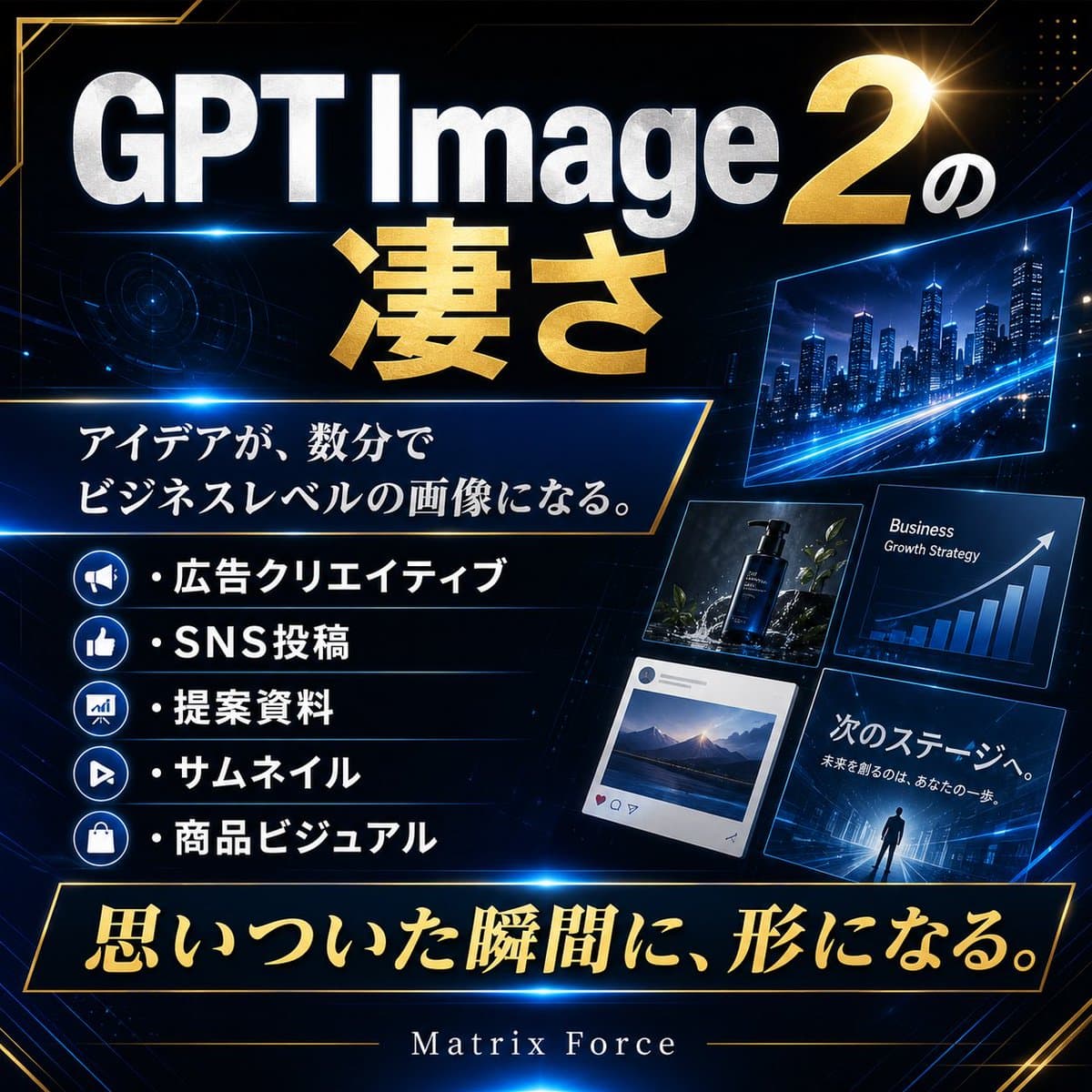
GPT Image 2 Prompt Guide: 10 Practical Prompts You Can Use on ImagineGo
If you are searching for a gpt-image-2-prompt-guide, you probably do not need another article that says “be more specific.” You need prompts that already match real creative jobs, plus a framework you can reuse when a prompt almost works but still misses the result. On ImagineGo, you can adapt the examples in this guide and run them directly in the GPT Image 2 workflow.
This guide is written with that use case in mind. Instead of giving you 70 vague examples, it focuses on 10 higher-value prompts that map to the kinds of assets GPT Image 2 is actually good at: photoreal portraits, product visuals, infographics, posters with in-image text, UI mockups, storyboards, and structured editorial scenes. The goal is simple: help you get cleaner output faster and make the prompt module on ImagineGo more useful in day-to-day work.
The visual examples in this article were created to demonstrate the prompt structures covered by the guide.
How to Use This GPT Image 2 Prompt Guide
The strongest GPT Image 2 prompts usually do six jobs well:
1. define the scene 2. define the subject 3. define the visual details 4. define composition 5. define lighting and mood 6. define constraints
That is also why the prompt-library model works well on ImagineGo. You do not always need to invent a prompt from zero. Often the better workflow is:
- start from a reusable prompt structure
- keep the image job clear
- change only the parts that matter
- test two or three variations instead of rewriting the whole thing
The 10 prompts below are written in that style. You can paste them as-is, swap the subject, or use them as starting points in GPT Image 2.
GPT Image 2 Prompt Guide: 10 Prompts by Use Case
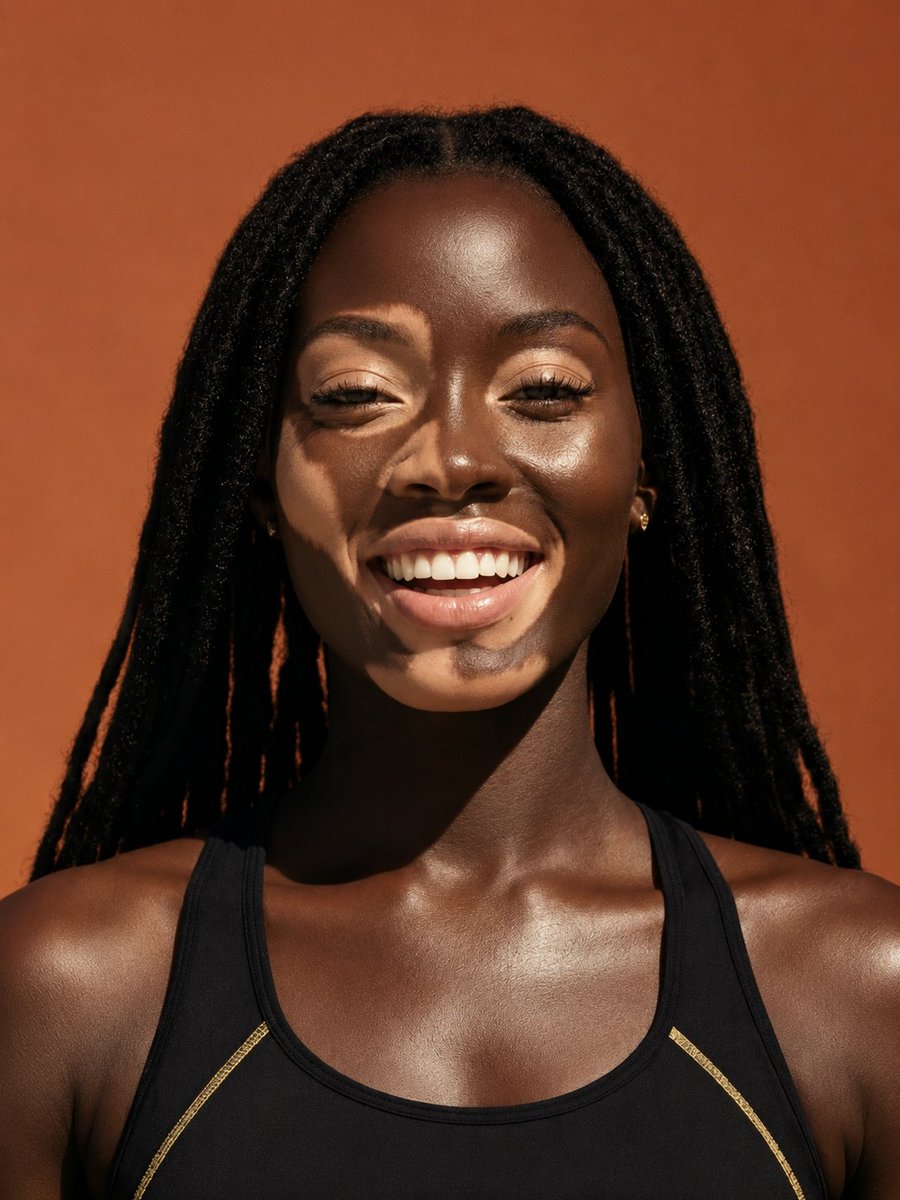
1. Photoreal Portrait Prompt
Use this when you want a highly believable portrait with clean composition and natural light control.
``text A woman in her early 30s standing beside a large window in a quiet modern café, wearing a cream blazer and soft gold earrings, looking slightly away from camera with a calm thoughtful expression. Medium close-up portrait, shallow depth of field, soft morning light from the left, realistic skin texture, subtle background blur, photorealistic, clean color grading, no text, no extra people. ``
Why it works:
- scene and subject are both specific
- the camera framing is clear
- lighting is doing emotional work
- constraints stop the model from cluttering the frame
2. Product Photography Prompt
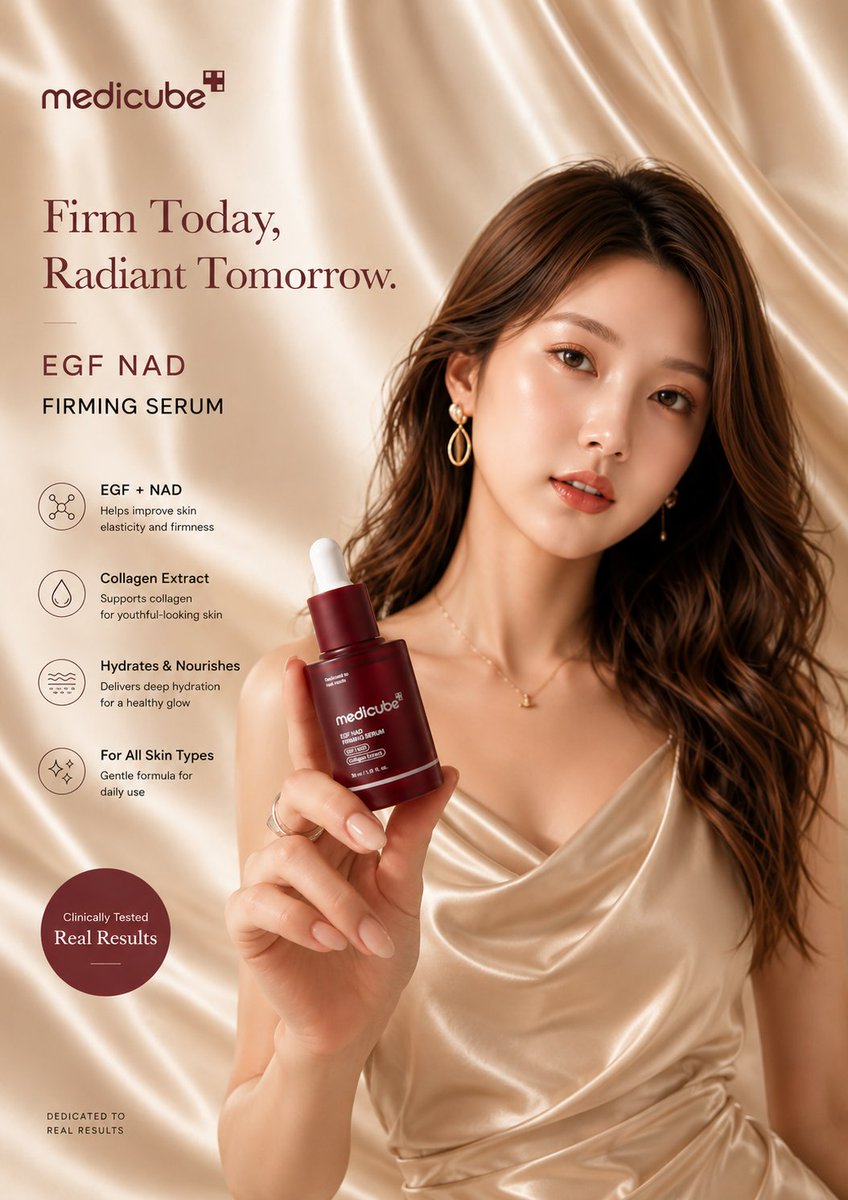
Use this for e-commerce mockups, hero product images, and clean brand visuals.
``text A premium skincare serum bottle centered on a polished beige stone surface with a few soft shadows and minimal reflections. Editorial product photography, eye-level framing, diffused studio light from upper left, sharp label readability, realistic glass texture, luxury cosmetics aesthetic, warm neutral palette, no props except a subtle contact shadow, no watermark, no extra text. ``
This is a good product-marketing pattern because it stays commercial without becoming generic.
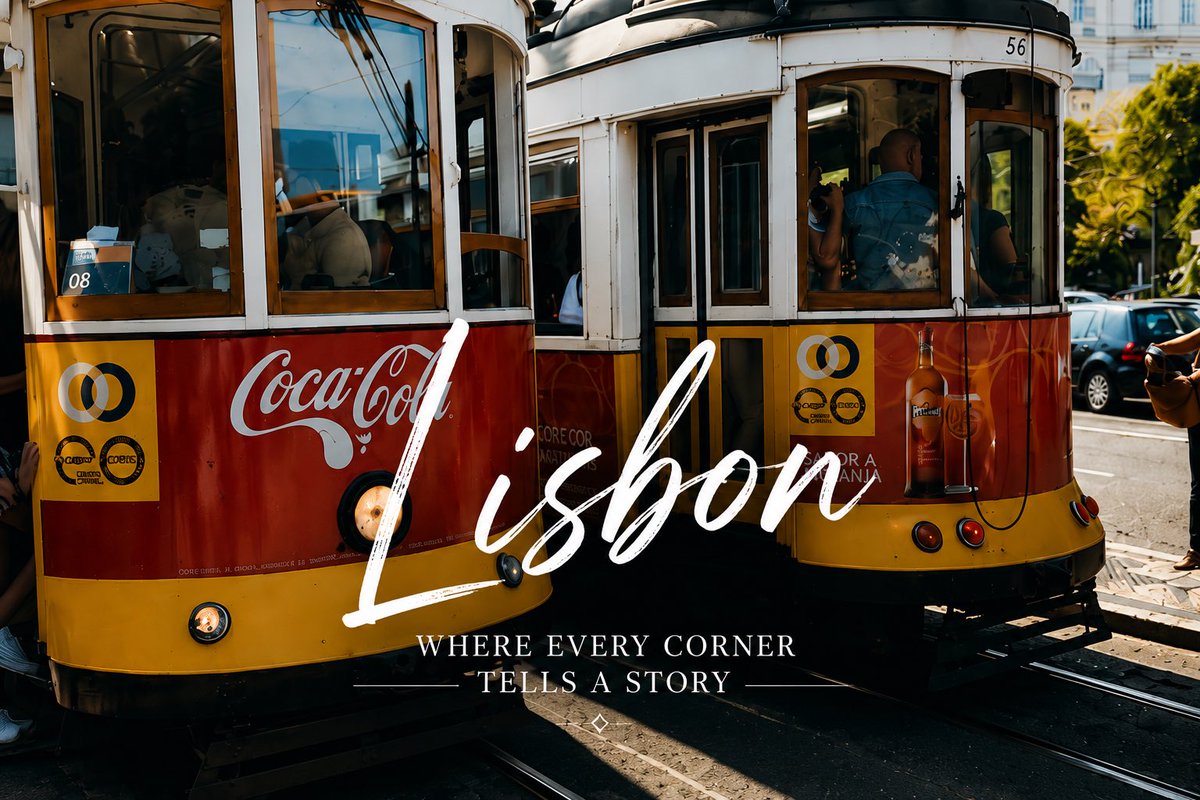
3. Social Ad Creative Prompt
Use this when you need a quick ad visual that still feels like a designed campaign, not a random image.
``text A lifestyle ad creative for a travel app: a young couple standing on a cliffside overlook at sunset, dramatic clouds, cinematic wide shot, golden rim light, aspirational mood, photorealistic. Add the text "PLAN YOUR NEXT ESCAPE" in bold white sans-serif, centered in the lower third, clean typography, no extra copy, no logos, high contrast. ``
What matters here is that the text is part of the layout responsibility, not an afterthought. GPT Image 2 is much more useful when you tell it exactly what the text should say and where it should live.
4. Infographic Prompt
Use this for educational or product-explainer visuals where hierarchy matters more than decoration.
``text Create a clean infographic titled "How AI Image Generation Works" with five horizontal steps: Prompt Input, Model Interpretation, Visual Composition, Image Rendering, Final Refinement. White background, consistent icon style, dark navy headings, short readable labels, generous spacing, flat modern design, clean arrows between steps, professional educational visual, no gradients, no extra elements. ``
If you want more examples like this, expand the same structure with different data, audiences, and visual hierarchies.
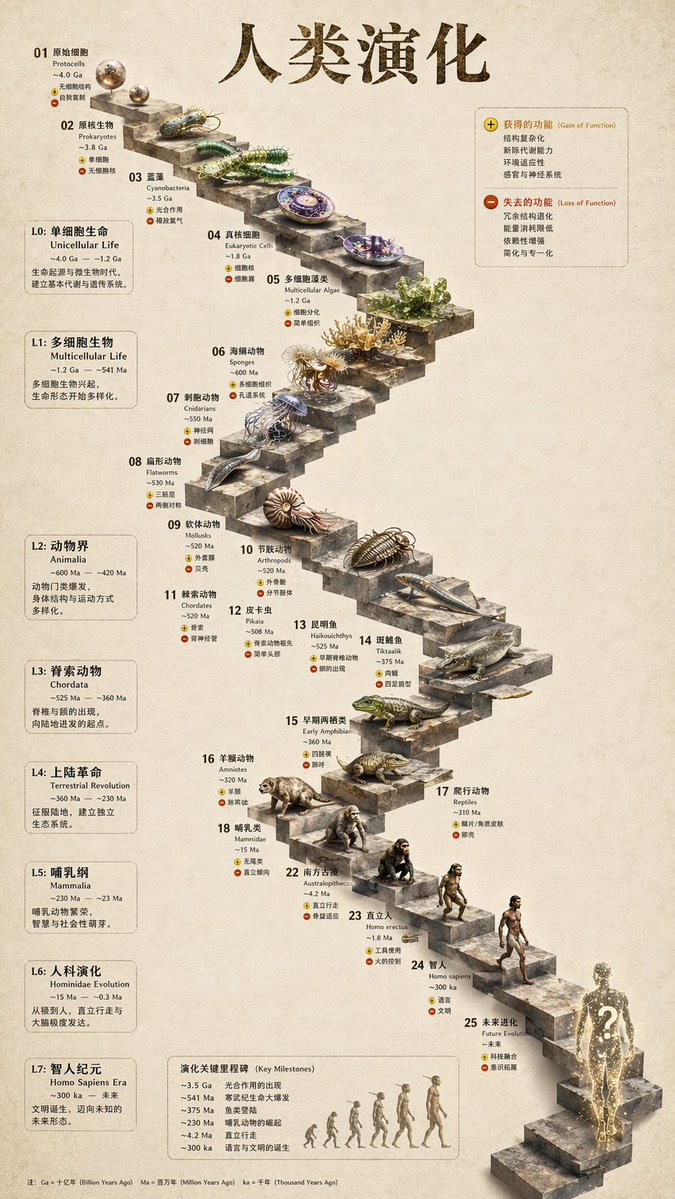
5. Poster With In-Image Text Prompt
Use this for event posters, editorial covers, or social graphics where typography is the main asset.
``text Create a cinematic event poster for a design conference called "VISUAL SYSTEMS 2026". Dark graphite background with subtle geometric texture, one glowing abstract glass form in the center, title "VISUAL SYSTEMS 2026" in large bold white sans-serif near the upper middle, secondary line "AUG 12–14 • BERLIN" in smaller white text below, clean hierarchy, strong poster composition, premium editorial feel, no extra text, no logos. ``
This is one of the clearest GPT Image 2 advantages over weaker image tools: text can become part of the composition instead of breaking it.
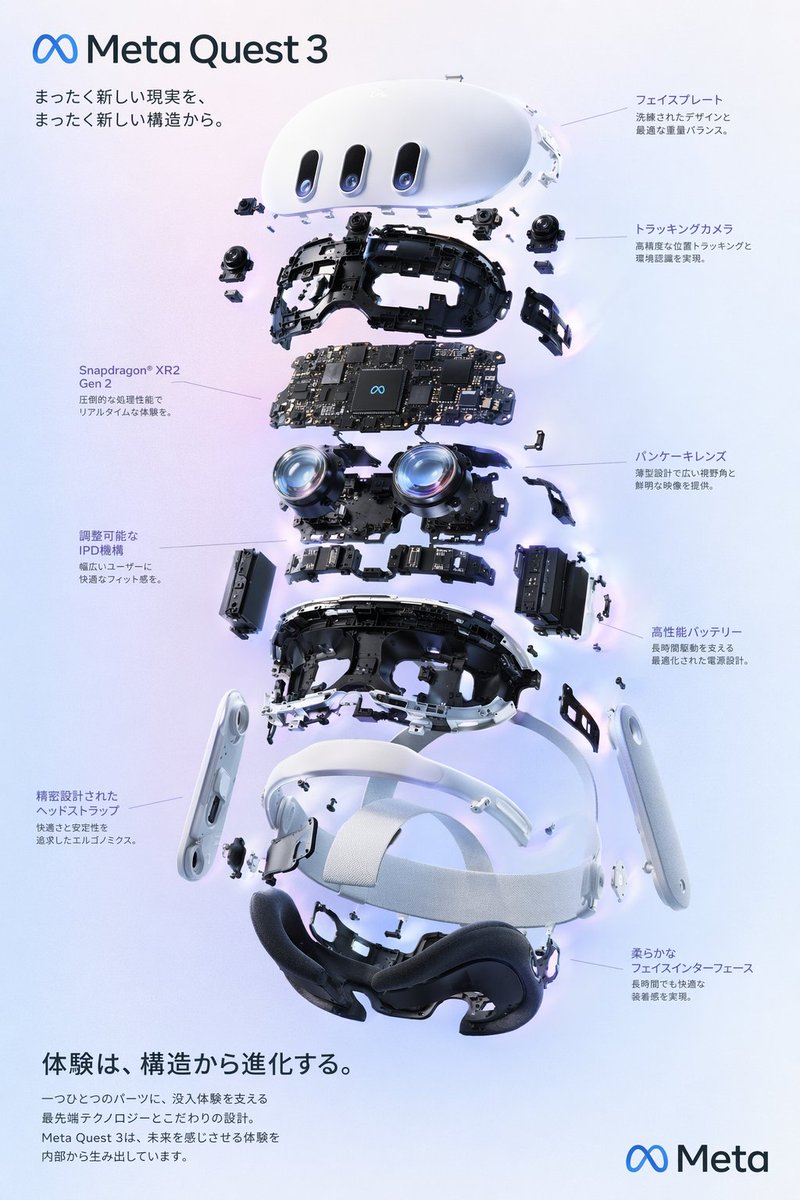
6. UI Mockup Prompt
Use this for landing page ideas, app screens, and dashboard concepts.
``text A mobile app dashboard for a budgeting app called "Luma". iPhone-style device frame, straight-on angle, clean white interface with soft blue accents, top balance card, spending categories grid, transaction list, neat spacing, polished modern SaaS visual design, realistic screen rendering, looks like a shipped product not a wireframe, no hands holding the device, no background clutter. ``
This type of prompt works well because it names structure, not just taste. If you only ask for a “beautiful finance app UI,” the model guesses. If you define interface blocks, it has a job.
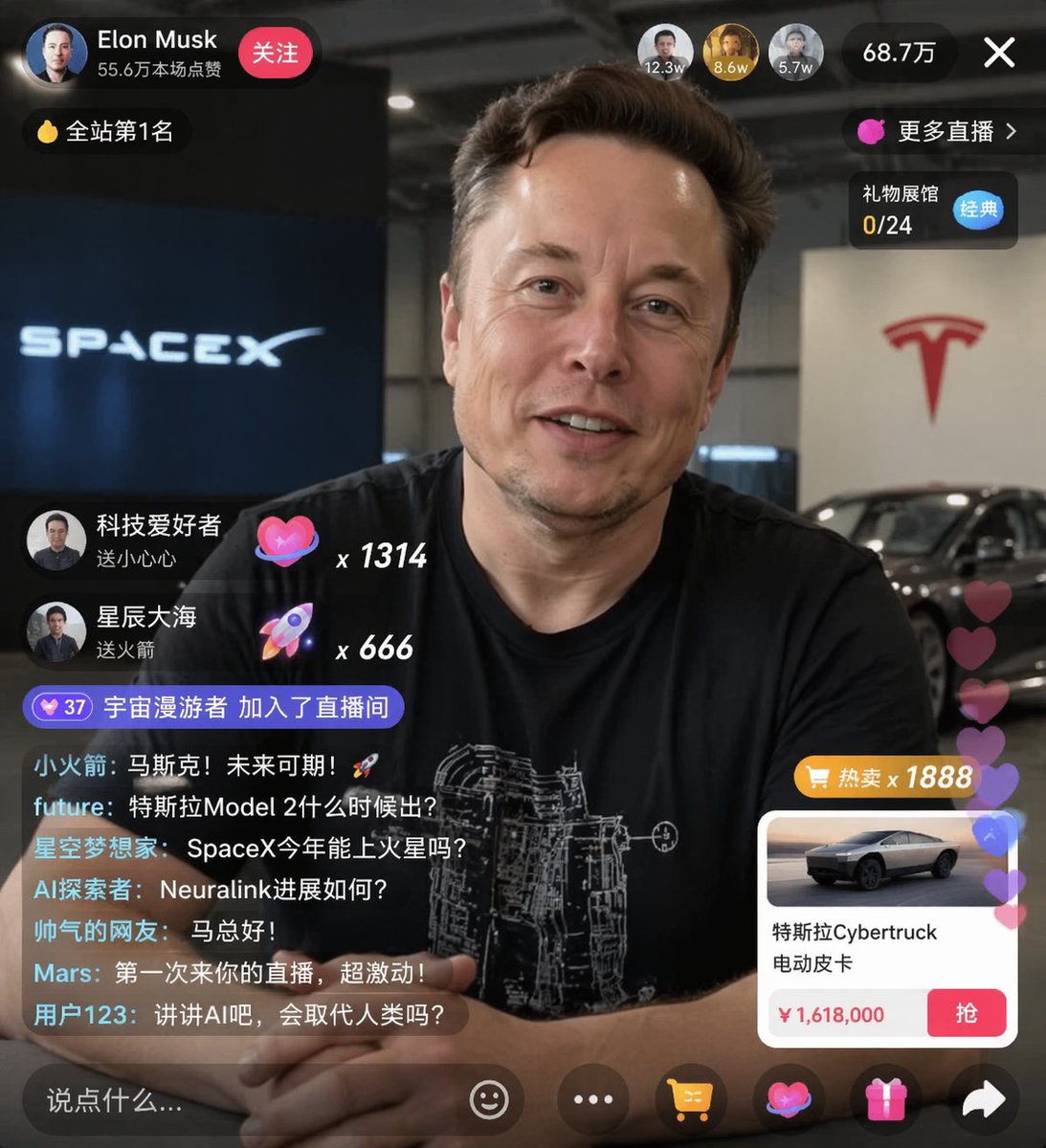
7. Comic / Storyboard Prompt
Use this for narrative panels, concept storytelling, or scene testing.
``text A three-panel storyboard. Panel 1: a young woman enters a glowing underground archive holding a lantern. Panel 2: she sees floating pages circling a stone pedestal. Panel 3: close-up as she reaches toward a bright manuscript with a shocked expression. Cinematic fantasy storyboard, consistent character design across all panels, readable visual progression, ink-and-color illustration style, no speech bubbles, no extra text. ``
This prompt is useful when you want GPT Image 2 to behave more like a story-planning tool than a single-image generator.
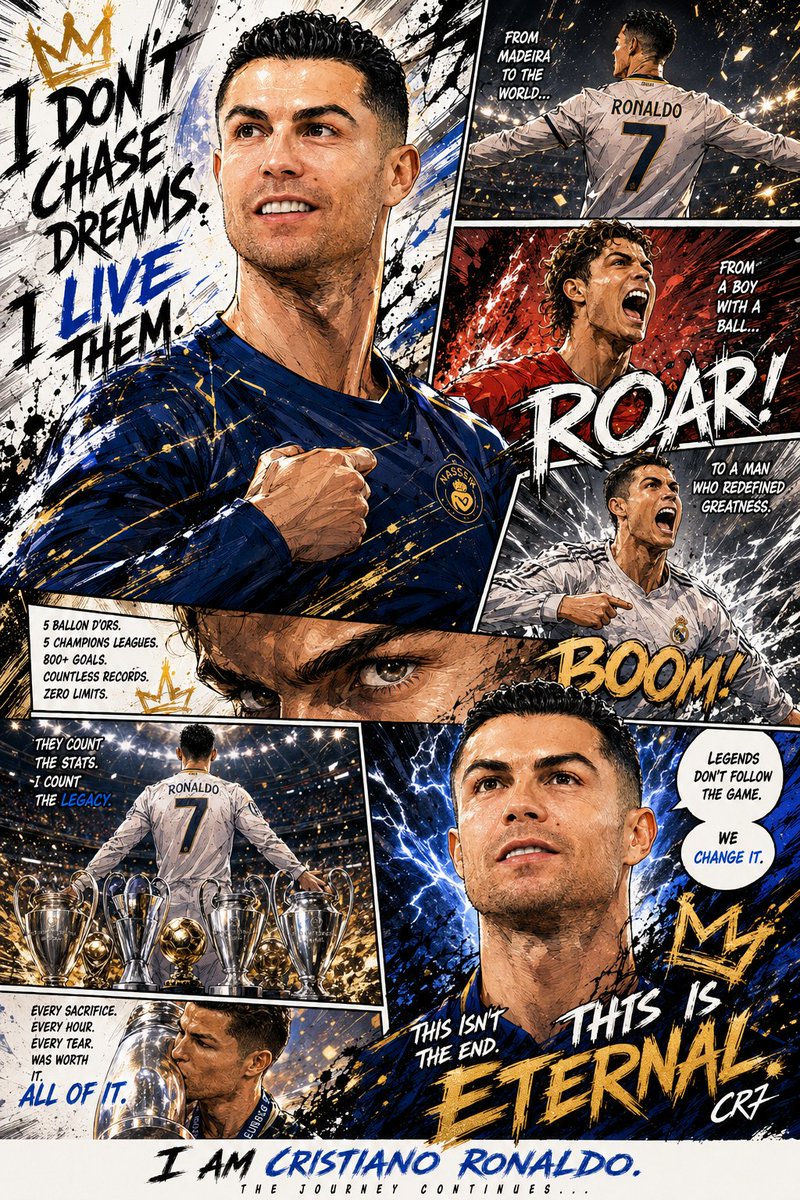
8. Character Consistency Prompt
Use this when you need one character across multiple scenes or creative variations.
``text Character anchor: a young man named Elias with shoulder-length black hair, pale olive skin, sharp jawline, dark green coat, and silver pendant. Semi-realistic fantasy illustration style, soft dramatic light, muted blue-green palette. Keep this exact character design consistent. Show Elias in three separate scene cards: standing in a rainy alley, reading a glowing book in a library, and walking through a snowy forest. Same face, same hair, same outfit, only the scene changes. ``
This kind of prompt is especially useful if you want to build reusable prompt assets in the ImagineGo prompt module rather than treating every generation as isolated.
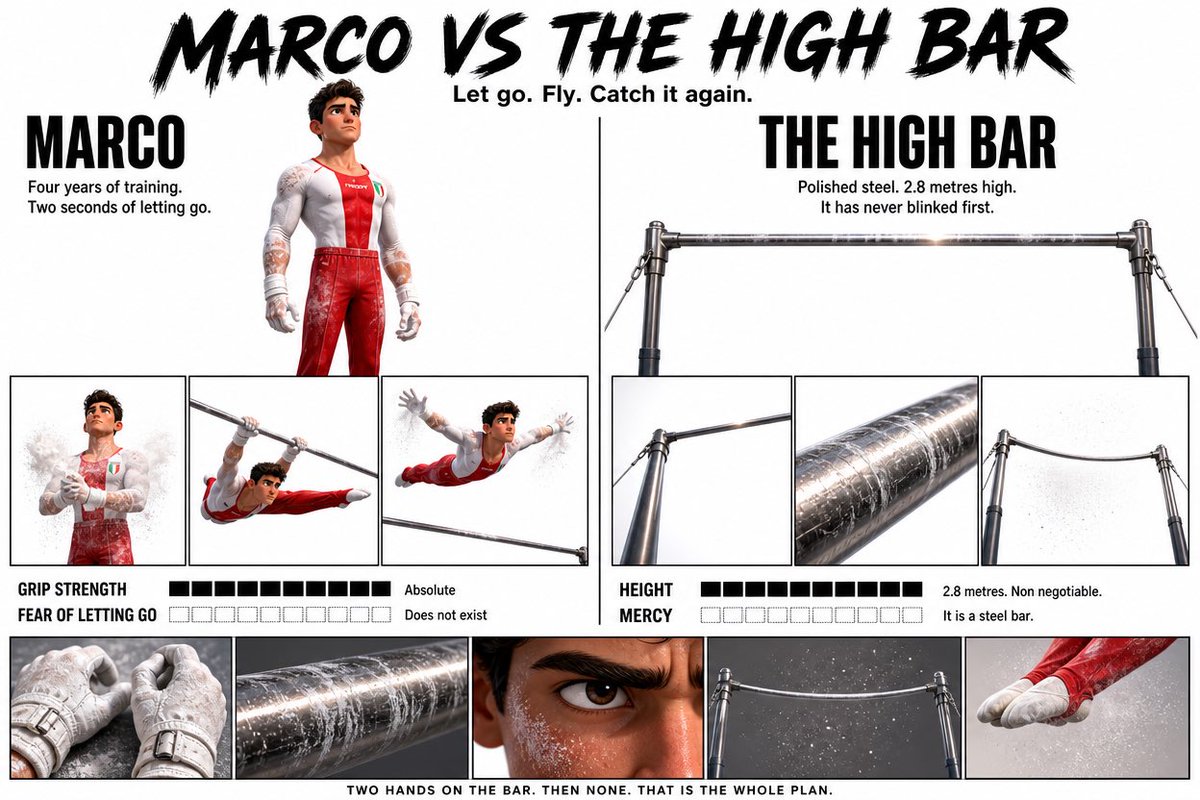
9. Editorial Illustration Prompt
Use this for blog hero visuals, publication illustrations, and concept-heavy storytelling.
``text An editorial illustration for an article about creative burnout in the AI era. A designer sits alone at a desk late at night, surrounded by floating half-finished layouts, prompt cards, and glowing notification windows. Moody blue lighting, strong focal contrast, slightly surreal atmosphere, magazine illustration quality, polished composition, no text, no watermark. ``
This is a good example of how to write for idea clarity, not just object description.
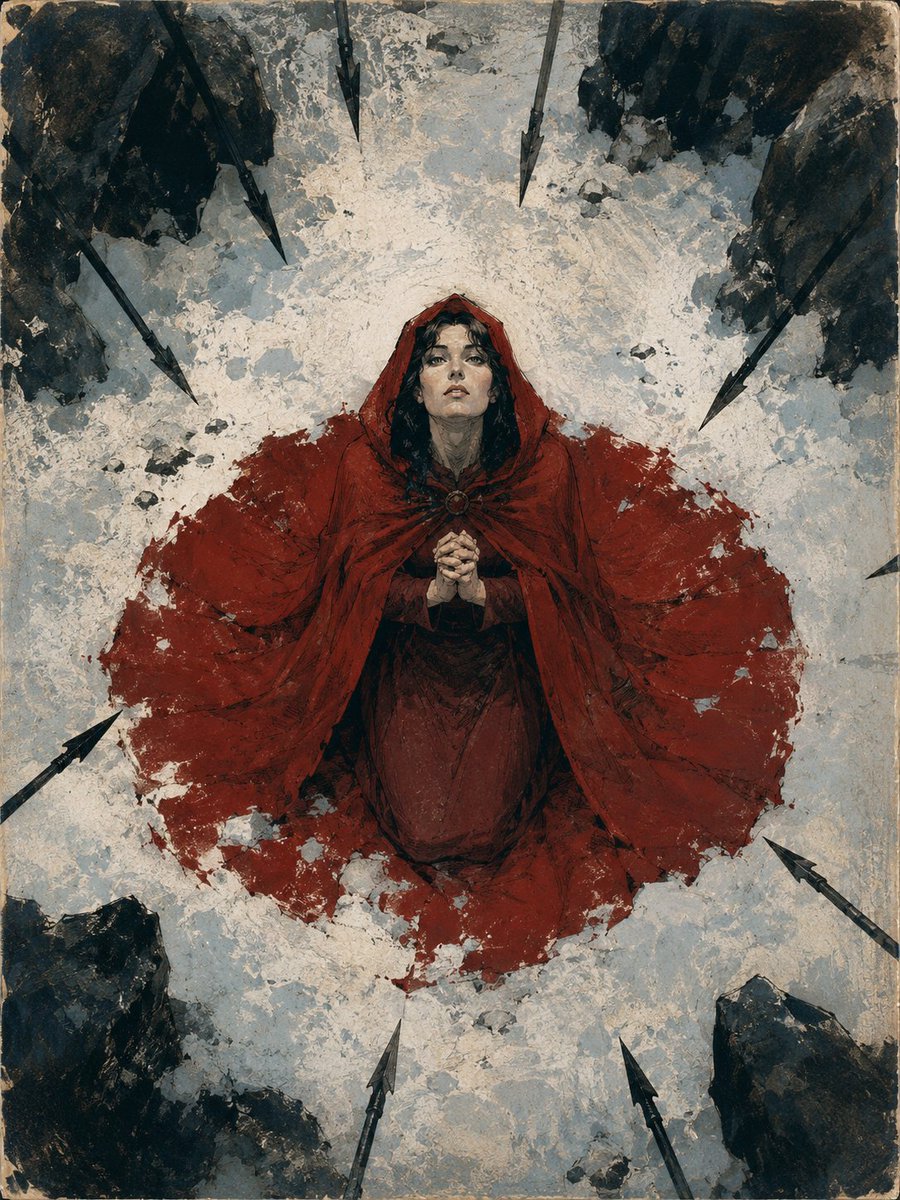
10. YouTube Thumbnail Prompt
Use this when the output needs high click contrast and simple readable hierarchy.
``text Create a YouTube thumbnail about AI poster design. A designer points at a dramatic futuristic poster on a screen, surprised expression, dark background with neon blue and magenta highlights. Add the text "GPT IMAGE 2 POSTERS" in large bold white and yellow type on the right side, high contrast, clean spacing, strong thumbnail readability, no extra text, no logos. ``
Thumbnail prompts should stay simple. The more copy you stuff into the frame, the faster the result degrades.
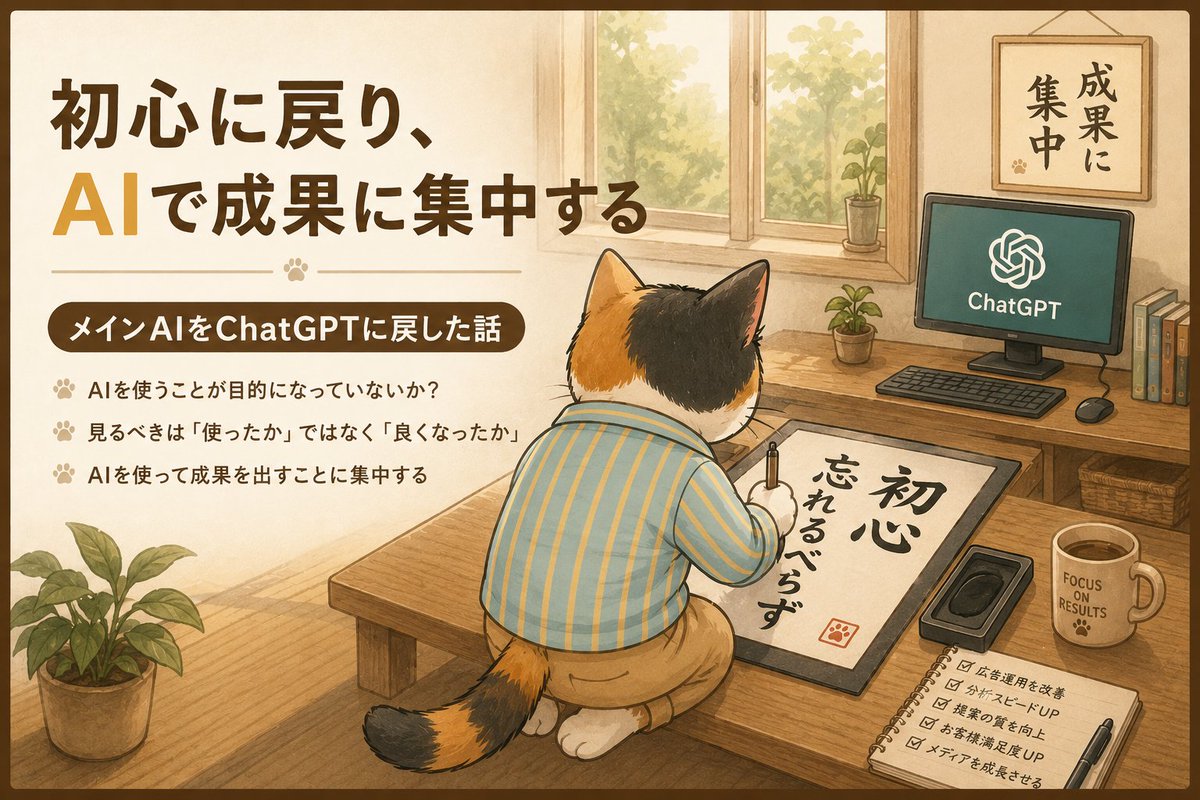
How to Improve a Prompt When GPT Image 2 Gets Close but Not Right
Most failed prompts are not completely wrong. They are just overloaded or underspecified.
The cleanest fix is usually one of these:
1. Add visual responsibility
Instead of:
``text Make it more professional ``
Say:
``text Use a centered composition, cleaner spacing, soft studio light, and a premium editorial color palette ``
2. Lock the invariant
When iterating, restate what must not change:
``text Keep the same subject, same composition, same typography placement — only change the lighting from warm sunset to cool studio light ``
3. Split one hard prompt into two passes
First pass:
- subject and composition
Second pass:
- text rendering
- mood
- detail refinement
That workflow is often better than trying to solve composition, text, mood, and precision in one giant prompt.
Why ImagineGo Is a Better Place to Use a GPT Image 2 Prompt Guide
A prompt guide becomes much more useful when it connects to an actual execution workflow.
On ImagineGo, you can use this guide in three practical ways:
1. Start from a reusable structure
If you do not want to write from zero, start with one of the structures in this guide and adapt it for your own subject.
2. Run directly in the GPT Image 2 workflow
If you already know what you want, go straight to GPT Image 2 and treat the prompts above as tested starting points.
3. Build your own internal prompt set
The highest-leverage habit is not collecting random prompts. It is saving the prompt patterns that repeatedly work for your own categories:
- product visuals
- posters
- infographics
- UI screens
- editorial scenes
That is exactly where a prompt module is more valuable than a one-off blog article.
Final Take
The real value of a gpt-image-2-prompt-guide is not the number of prompts. It is whether the prompts map to real image jobs and whether you can reuse them without rewriting everything from scratch.
That is why this guide stays focused on 10 practical prompts instead of 70 generic ones. Each prompt here reflects a job GPT Image 2 can actually do well, and each one can be adapted and run directly in GPT Image 2.
If you want, the next good step after this article is to turn these 10 prompts into separate prompt-library entries and cross-link them from the blog, so the post becomes both a traffic page and a prompt acquisition funnel.