Turn your photo into a Disney-inspired animated portrait with AI. Upload a photo, keep recognizable features in view and download a new cartoon image.
Photo to Disney · Your photo
GPT Image 2.5 · 1K6 points / image
Sign in to upload and generate. Points are used for each generation.
Photo to Disney · Result
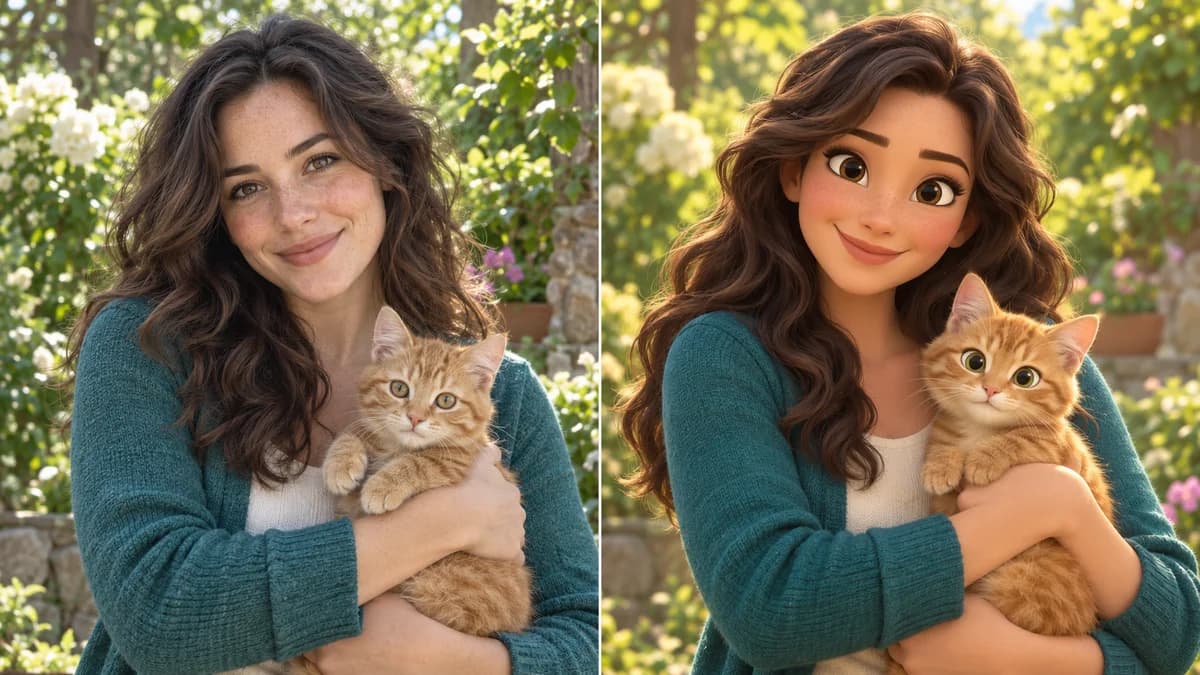
AI-generated illustrative comparison with a fictional subject. It is not a verified output from this website’s generation endpoint; your result may differ.
Photo to Disney before-and-after example
See the difference between a natural photograph and a Disney-inspired animated portrait: softer sculpted features, expressive eyes, rich colors and cinematic light. The tool guides the model to keep the subject, pose, clothing colors and framing recognizable while changing the visual treatment. Your uploaded photo becomes the reference for a new image, rather than receiving a simple color overlay.
AI-generated illustrative comparison with a fictional subject. It is not a verified output from this website’s generation endpoint; your result may differ.
How to use Photo to Disney
01
Upload a clear photo
Choose a PNG, JPG or WebP file up to 10 MB and sign in to upload it. A sharp portrait with a visible face is a good starting point. The same upload can contain a couple, a small group or a pet, but each subject should be easy to distinguish.
02
Generate your animated portrait
Click the conversion button after the upload finishes. Photo to Disney uses GPT Image 2.5 with a built-in animation-style instruction, so you do not need to write a prompt or choose between presets. The current points cost appears next to the model information. Generation time depends on the service queue and task.
03
Review and download
Compare the generated image with your original photo. Look at the face, hairstyle, hands, clothing and the number of subjects before downloading. Save the result when you are happy with it, or use a clearer source for another attempt. A new generation is a separate task with its own displayed points cost.
Why try Photo to Disney?
An animated look with a familiar subject
The transformation aims for original character design inspired by animated family films: expressive eyes, rounded forms, gentle texture and appealing light. The model is instructed to preserve age, skin tone, expression, hairstyle and pose. These are editing goals rather than a guarantee of exact identity preservation, so compare the result carefully.
A simple photo-first workflow
Upload one reference and start the transformation. The preset handles the style direction, while the existing generation flow provides progress, readable errors, account access and image history. There is no need to move between a separate photo editor and a text prompt interface to create a first cartoon portrait.
A downloadable image for creative projects
Use the finished picture as a starting point for an avatar, a digital greeting or a personal illustration. Download the image and crop or adjust it in your preferred editor. The output is a flat image with a three-dimensional animation appearance, not a rigged 3D model or an animated video.
Photo to Disney ideas for your pictures
Selfies and profile pictures
Give a clear head-and-shoulders portrait a playful animation treatment. Keep enough space around the face for later cropping into a circular avatar. Avoid using the image as identity verification or suggesting that the illustration is an untouched photograph.
Couples and group memories
Try a photograph where every face is visible and the subjects are separated. The prompt asks the model to keep the original number of people and their arrangement. Group scenes are more demanding than a single portrait; inspect each face and check that nobody has been merged, removed or duplicated.
Pet portraits
Use a photo with clear eyes, fur markings and a visible outline. The style instruction also guides animal identity, pose and composition, making it suitable for a playful portrait of a cat or dog. Fine fur patterns and collars may change, so review the result if those details matter.
Gifts and digital keepsakes
Create an illustrated starting point for a birthday card, a family keepsake or a creative mood board. Add any message in an editor after the conversion. If you plan to print, check the downloaded dimensions and the printer’s requirements instead of assuming the image is ready for every paper size.
Photo to Disney tips for better results
Choose detail the model can see
Use a sharp image with soft, balanced light and a face large enough to inspect. Heavy blur, deep shadows and tiny faces hide the features that help the model preserve likeness. A better reference often gives you more control than repeatedly generating from a poor one.
Keep the composition readable
Avoid covering the face with hands, sunglasses or large foreground objects when recognizable features are the priority. Busy backgrounds and overlapping subjects can make interpretation harder. A simple scene lets the style change remain the main visual difference.
Inspect small details
Check fingers, glasses, earrings, clothing patterns and pet markings after conversion. Text and logos in the original photo may be redrawn or distorted. Keep the source photo so that you can compare details and make any final corrections in an image editor.
Understand the style and processing
The photo is uploaded and processed through the site’s existing AI image service; this is not an entirely local filter. Use photos you are authorized to edit and avoid sensitive content you do not want processed. Photo to Disney describes a Disney-inspired look; imagineGo is an independent tool and does not imply Disney endorsement.
Keep your original photo
The generated portrait is a creative interpretation. Save the original, compare the details that matter and make a final crop after downloading rather than assuming the model preserved every pixel.
It redraws the photo as an original animated-style image, with stylized facial features, soft surfaces, colorful lighting and a film-like appearance. The prompt guides recognizable identity, pose, clothing and composition, but the AI can still alter details.
Do I need to write a prompt?
No. This page supplies a fixed style instruction and automatically uses the uploaded photo as the reference. Upload the image and click generate. There are no additional style tabs or custom settings required to complete the transformation.
Does Photo to Disney work with pets or couples?
The preset includes people and animals and asks the model to keep the subject count and arrangement. Clear single-subject images are easier to interpret; for couples or groups, use visible, well-separated faces and inspect every subject in the result.
Is this an official Disney tool?
No. imagineGo provides an independent AI photo editor. The name describes the requested visual inspiration, and the output is an original stylized version of your subject. The page does not claim affiliation with or endorsement by Disney.
Is Photo to Disney free?
Generation uses account points. The current cost is shown in the tool and comes from the GPT Image 2.5 model configuration. Viewing the illustrative example does not submit a paid task. Sign in and check your available balance before starting.
Does it create a 3D model or video?
No. The result is a downloadable image with a 3D animated-film appearance. It does not contain editable geometry, animation frames or a character rig. Use the site’s Image to 3D or video tools for those separate workflows.
Create your Photo to Disney portrait
Start with one clear photo, turn it into an animated portrait and inspect the result before sharing.